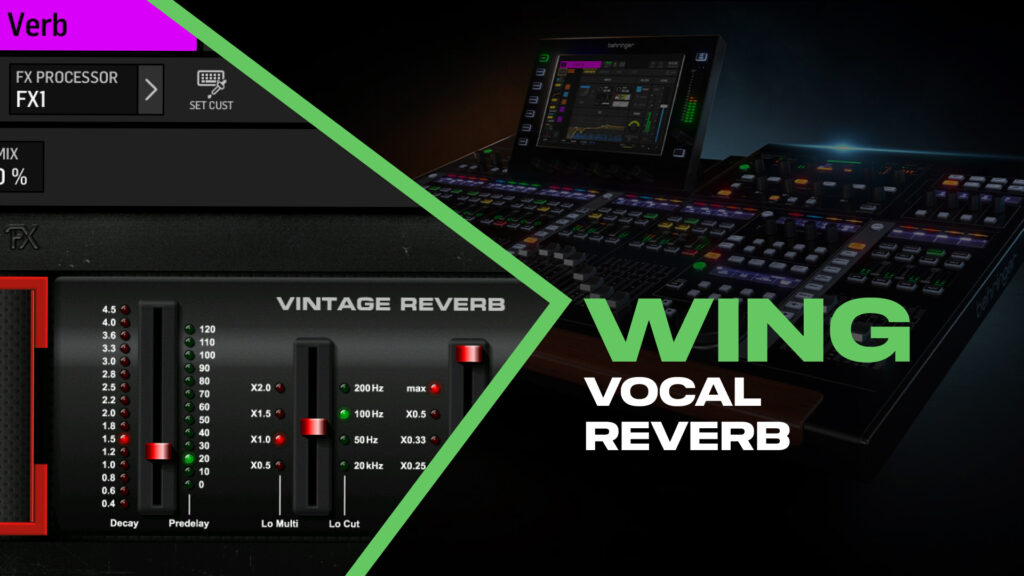
Adding a touch of reverb to your vocals can make the difference between a mix that sounds flat and one that has depth and polish. On the Behringer WING, you do this by inserting an effect on a mix bus rather than using dedicated FX sends and returns.
This post walks through setting up a vocal reverb using a mix bus, routing it to your PA and stream, and the two different ways to control your reverb level.
Watch the full walkthrough in my WING Vocal Reverb setup video.
The Mix Bus Method
On the WING, the standard approach for time-based effects like reverb and delay is:
- Assign a mix bus for your effect
- Insert a reverb on that bus
- Send your vocal channels to that bus
- Route the bus to your mains (PA, stream, etc.)
This keeps things simple and doesn’t require dedicating input channels to effect returns.
Step 1: Choose a Mix Bus for the Reverb
I typically reserve mix buses 1-8 for monitors and use 9-16 for effects and other routing. For this example, I’ll use mix bus 13 for my vocal reverb.
Select your mix bus and give it a name. I’ll call mine ‘VOX Verb’.
Step 2: Route the Bus to Your Mains
With your VOX Verb bus selected, click down into the main sends section. Turn on the send to whichever mains need to receive this reverb.
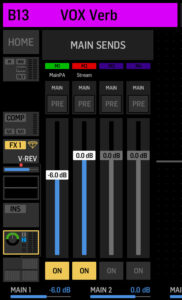
If you have Main 1 as your PA and Main 2 as your Stream Mix, make sure both are turned on. If you skip this step, your reverb won’t make it to one of your outputs.
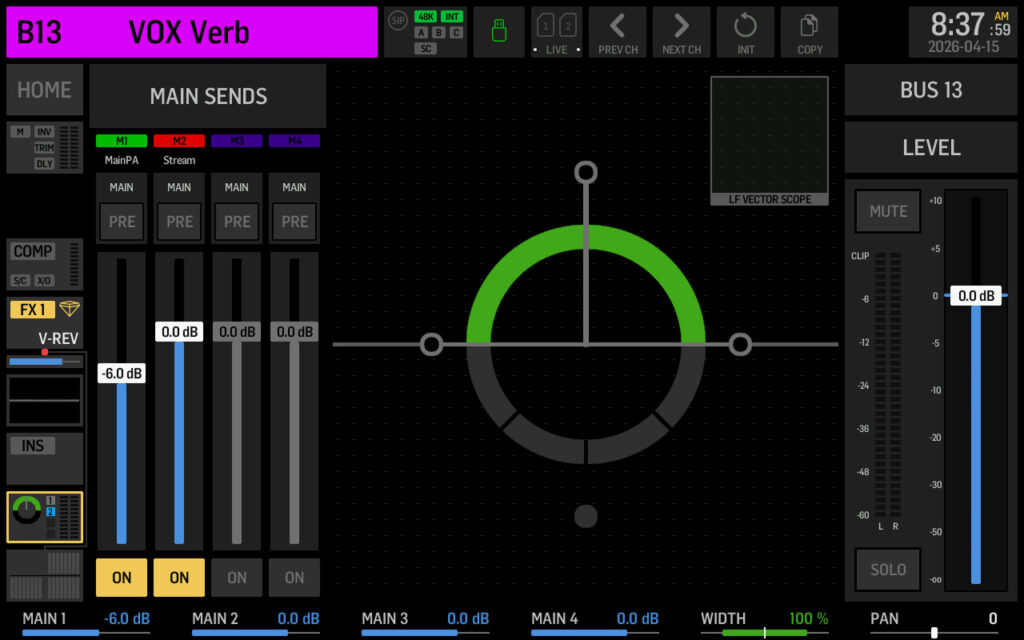
Mixbus 13 routed to Main 1 (PA) and Main 2 (Stream).
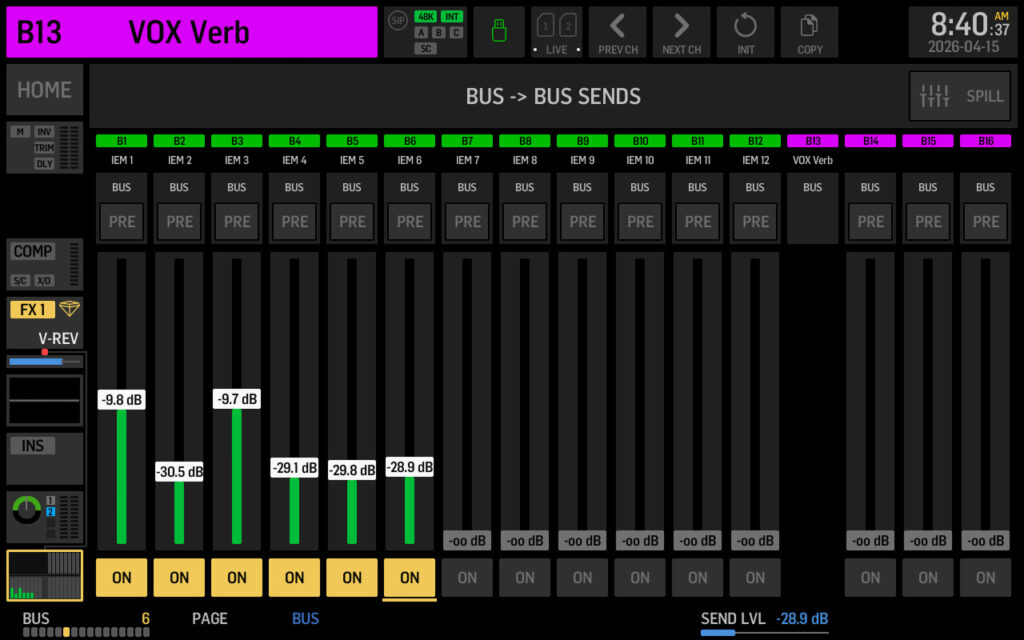
You can also send this vocal reverb bus to monitor mixes if your vocalists want reverb in their ears. Go to the mix bus sends section (press again to toggle between matrix and mix bus sends) and turn up the send to whichever monitor bus needs it. Keep in mind that bus-to-bus routing is post-fader only, so the reverb level in monitors will follow your VOX Verb bus fader if you happen to turn it up or down while mixing.
Step 3: Insert the Reverb
Select your VOX Verb bus, go to the home screen, and navigate to Insert 1 (pre-fader insert).
Tap into the insert and select an effects processor. Time-based effects like reverbs, delays, and choruses are premium effects, so they need to be loaded into FX Racks 1-8. Racks 9-16 are for dynamics and EQ-type effects only.
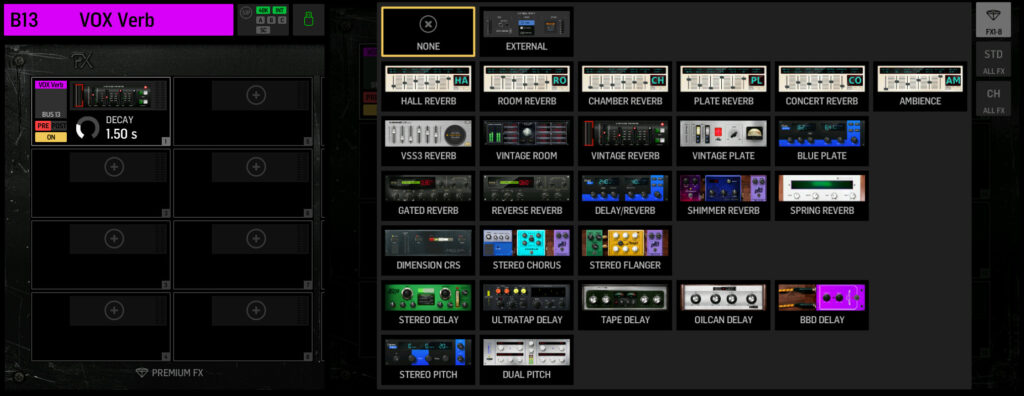
FX Racks 1-8 are for time-based effects like reverb and delay.
Select your rack (I’ll use Rack 1), then go to Effect Type and choose your reverb. I’ll load up the Vintage Reverb for this example. Make sure to turn the effect on.
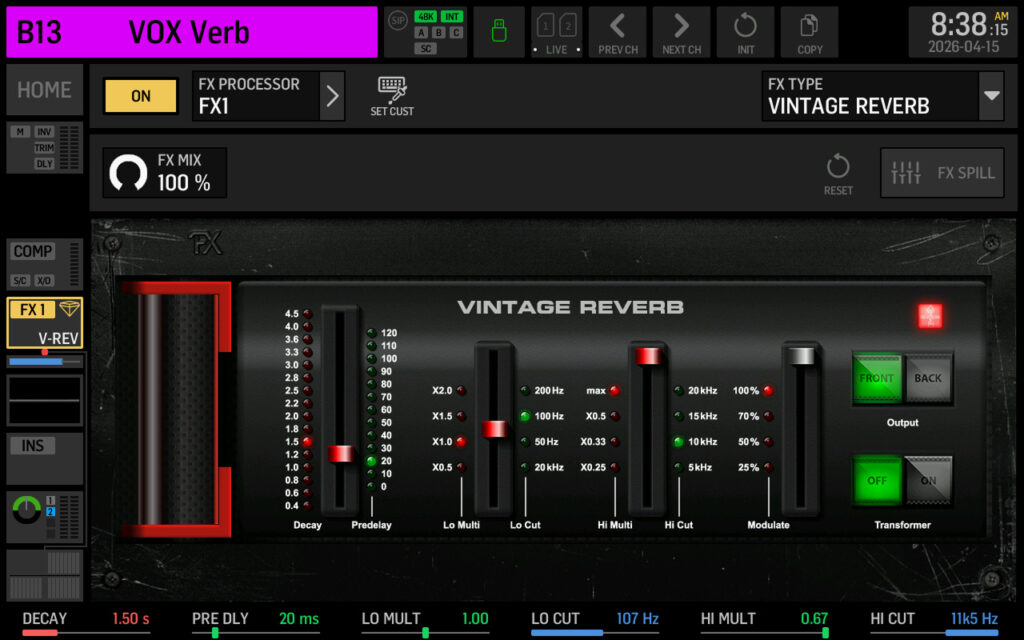
Vintage Reverb inserted on Mix Bus 13.
Step 4: Send Your Vocals to the Verb Bus
Now route your vocal channels to the VOX Verb bus. You can do this two ways:
From the bus side: Select your VOX Verb bus (Mix Bus 13), press ‘Bus’ to enter Sends on Fader mode, then bring up the faders for any channels you want to send to the reverb.
From the channel side: Select your vocal channel, click down into the mix bus sends, find your VOX Verb bus, turn it on, and adjust the level.
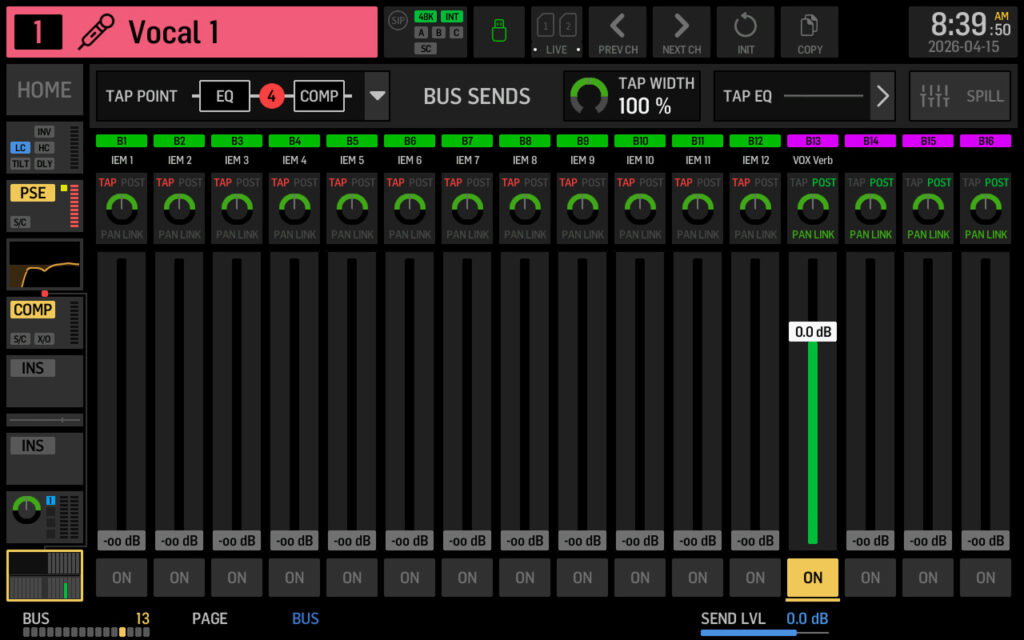
Sending from Channel 1 to the VOX Verb bus.
Set Your Tap Point – POST FADER
For vocal reverb, you typically want a post-fader tap so the reverb level follows your vocal fader. If you turn the vocal down, the reverb should go down with it.
Controlling the Vocal Reverb Level
Once everything is routed, you have two options for controlling how much vocal reverb you hear:
Option A: Adjust Send Levels, Leave Bus at Unity
Leave your VOX Verb bus fader at 0 dB. Control the amount of reverb by adjusting the send level from each vocal channel to the VOX Verb bus. More send = more reverb on that specific vocal.
This is useful when you want different amounts of reverb on different vocalists.
Option B: Adjust Bus Fader, Leave Sends at Unity
Leave your channel sends at 0 dB. Control the overall reverb amount by adjusting the VOX Verb bus master fader. This changes the reverb level for all vocals feeding that bus equally.
This is useful when you want to push the reverb up for a ballad or pull it back for a spoken section.
Both approaches work. Pick whichever makes more sense for your workflow and your team.
Tip: Independent Reverb Levels for PA and Stream
Since the VOX Verb bus has separate send levels to each main, you can dial in different reverb amounts for your room mix versus your broadcast mix.
For example, set your Main 1 (PA) send to -6 dB for a subtle room reverb, but leave Main 2 (Stream) at +0.0 dB for a more reverb in the broadcast feed. The VOX Verb bus fader still acts as a master for both, but the ratio between them stays locked in.
YouTube Video
Watch the full walkthrough in my WING Vocal Reverb setup video.
Effects Preset Pack
If you want a head start on dialing in your effects, I sell an effects preset pack with my favorite sounds for all the built-in effects on the WING. Check it out here.