If you’re running a dual-console setup with separate FOH and monitor positions, you don’t need two separate stage boxes. You can connect two Behringer WING to a single Midas DL32 (or S32) and have both consoles receive all 32 inputs simultaneously.
In this guide, I’ll walk you through the complete setup – from physical connections and clock sync to cross-console communication and talkback routing. At the end of the post, there is an option to download the snapshots that have the routing already accomplished, all you will need to do is set up the correct clock source on the two consoles and you are ready to go!
What You’ll Need
- Two Behringer WINGs (any combination of full-size, Compact, or Rack)
- One Midas DL32 or Behringer S32 stage box
- Two shielded Cat5e cables with EtherCon connectors (80 meters max each)
- Both Behringer WING’s updated to same firmware version (firmware 3.1 or later recommended)
- Midas DL32 or Behringer S32 updated to firmware 3.1 or later
For best results with your AES50 cables, check out my Cat5e vs Cat6 comparison for AES50.
How This Setup Works
The Midas DL32 (and Behringer S32) has two AES50 ports (A and B), and it acts as a splitter – duplicating all 32 local inputs and sending them to both consoles simultaneously.
Here’s the key difference to keep in mind:
- WING #1 (AES50-A) – Full preamp control including analog gain and phantom power
- WING #2 (AES50-B) – Digital trim only (post-preamp signal)
This means the console on the A port controls the actual gain staging. Preamp level & Phantom Power are set from the console on the A port. The B port console receives that same audio and can only adjust digital trim on their end.
For this example we will have WING #1 be at front-of-house and WING #2 be at the monitor position.
Physical Connections
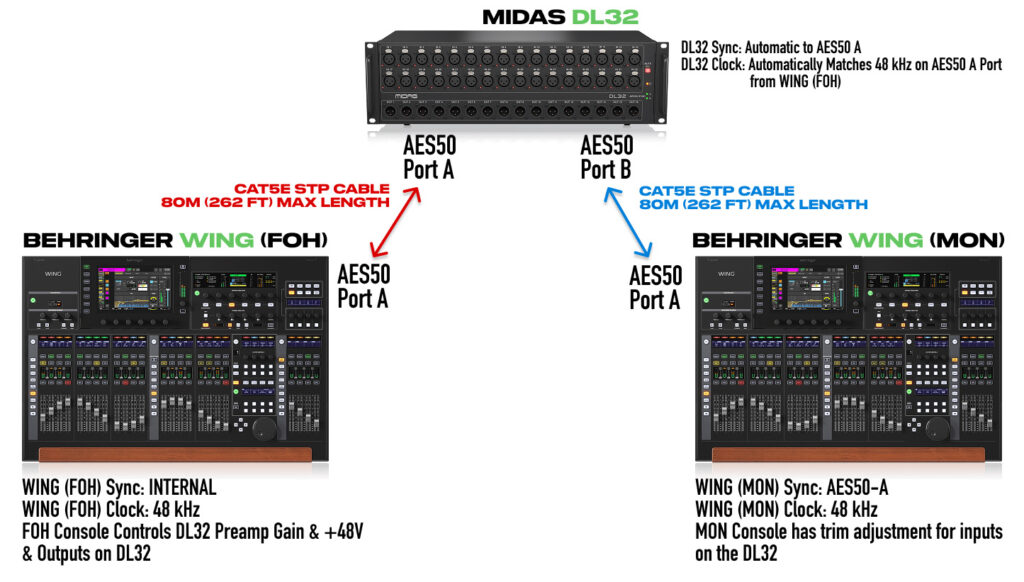
Connection diagram showing both WINGs connected to the DL32
Connections:
- WING #1 AES50 Port A → DL32 AES50 Port A
- DL32 AES50 Port B → WING #2 AES50 Port A
Notice that WING #2 connects to the DL32’s B port, but uses its own A port for the connection. This is important for the routing to work correctly.
Clock and Sync Setup
One console must be the clock master, and all other devices sync to it. In this setup, WING #1 (FOH) is the master. You should have the master console connect to AES50 Port A on the DL32.
For a deeper explanation of why this matters, see my WING Sync Source and Clock guide.
WING #1 (FOH) Settings
Go to SETUP → Audio:
- Clock Rate: 48 kHz
- Sync Source: Internal
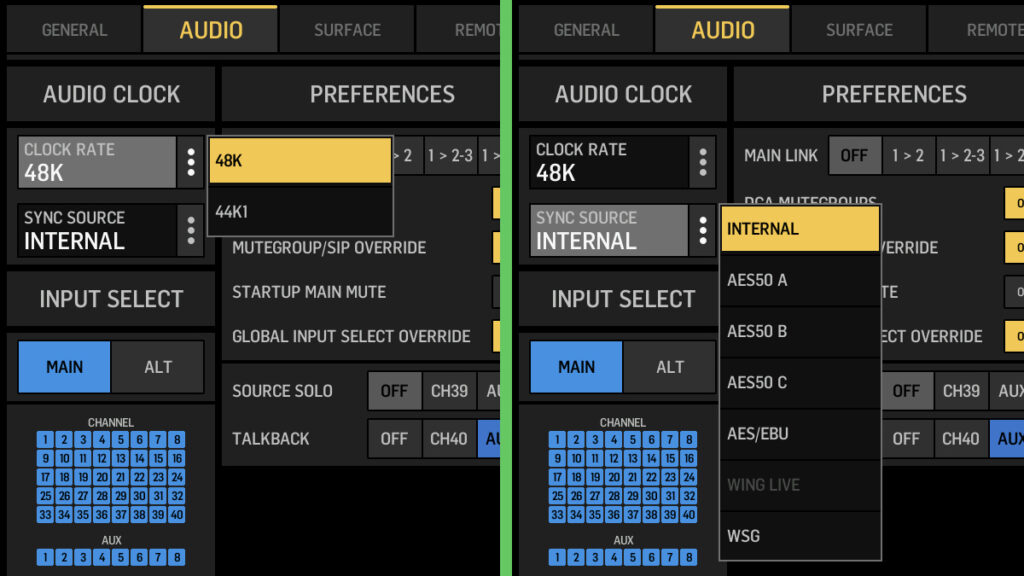
WING #1 set to Internal sync as the clock master
When connected correctly, you’ll see a bright green indicator next to AES50-A. If the green looks grayish or “foresty,” your stage box firmware needs updating.
WING #2 (Monitor) Settings
Go to SETUP → Audio:
- Clock Rate: 48 kHz
- Sync Source: AES50 A
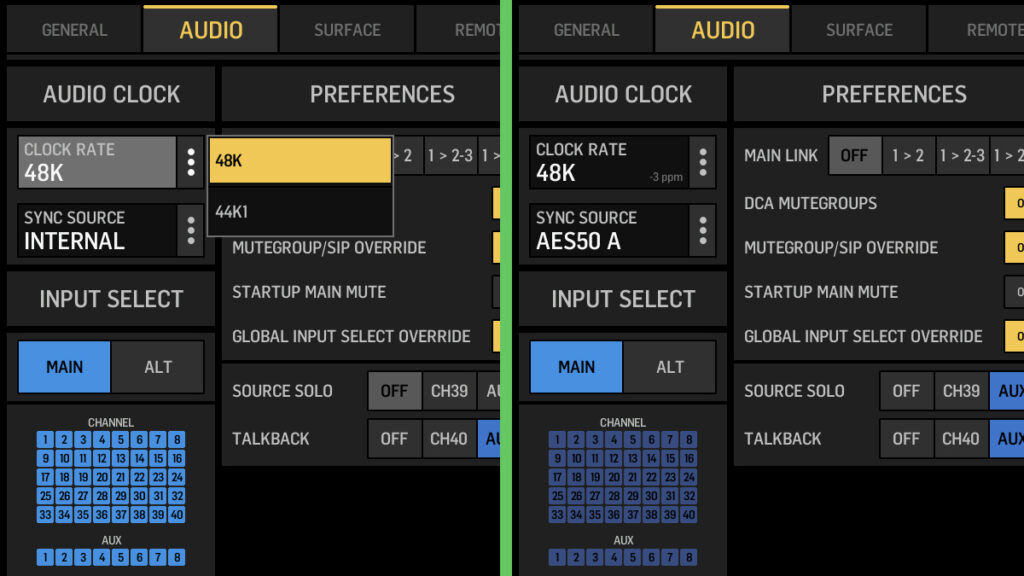
WING #2 syncing to AES50-A (receiving clock from WING #1 through the DL32)
Input Routing Overview
Both consoles receive the same 32 inputs from the DL32, plus 16 channels of cross-console communication.
WING #1 (FOH) Receives:
| AES50-A Channels | Source |
| 1-32 | DL32 Inputs 1-32 (Preamp Control) |
| 33-48 | WING #2 AES50-A Outputs 1-16 |
WING #2 (Monitor) Receives:
| AES50-A Channels | Source |
| 1-32 | DL32 Inputs 1-32 (Trim Only) |
| 33-48 | WING #1 AES50-A Outputs 33-48 (Shared with Ultranet on DL32) |
The 33-48 channels are your cross-console sends – perfect for talkback mics, stereo mixes, click tracks, or anything else you need to share between consoles. One important note is that WING #2 (Monitor Console) receives WING #1’s AES50-A Outputs 33-48, but those are the same channels that go to the Ultranet port on the DL32. So if you’re utilizing the P16 system on the DL32, keep in mind that this is shared with the channels being sent to WING #2.
Preamp Control vs Digital Trim – Important!
This is the most critical thing to understand about this setup.
WING #1 (A port) has actual preamp control. When you adjust gain on inputs 1-32, you’re controlling the analog preamp gain stage inside the DL32. You also control phantom power.
WING #2 (B port) only has digital trim. The audio arriving at this console is already post-preamp. Boosting trim doesn’t improve signal-to-noise ratio – you’re just turning up whatever WING #1’s gain staging provided.
This is an important distinction between the two, and often times it is fine, you just have to be aware of it. If the FOH tech sets too much gain and clips the input, the audio will be distorted to both consoles, no matter the trim level on WING #2. Conversely, if the FOH tech sets the gain too low, WING #2 will only be able to boost it by +18 dB, which might not be enough to get a reasonable level.
Practical implications:
- If a mic is too quiet at the preamp level, the monitor engineer must ask FOH to increase gain
- Phantom power is controlled by WING #1 only
- Many teams have FOH set consistent gain levels during soundcheck and leave them alone, letting both engineers work from that baseline
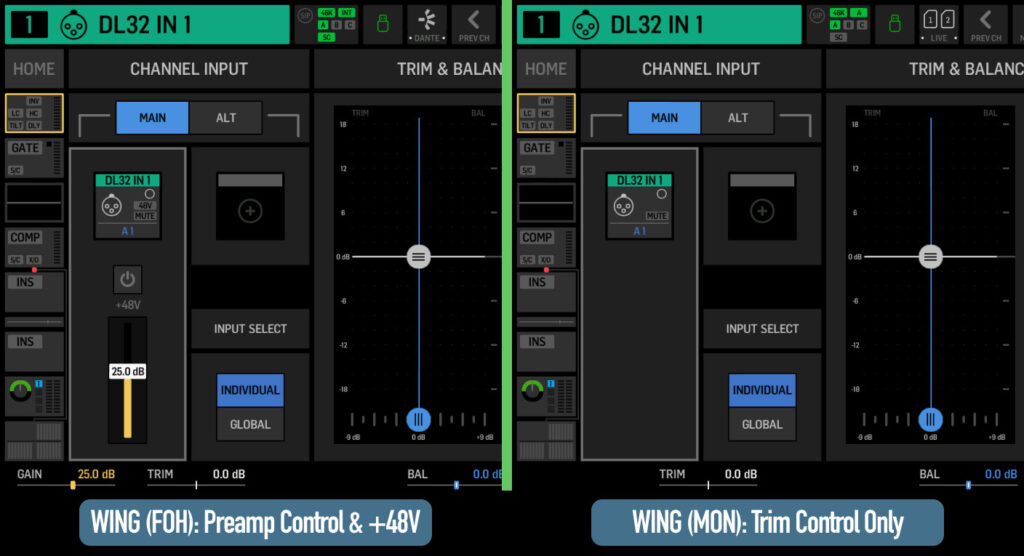
Left: WING #1 shows preamp gain control. Right: WING #2 shows trim adjustment only.
Routing Inputs to Channels
On WING #1 (FOH)
- Go to ROUTING → Sources → AES50-A
- You’ll see the DL32 on channels 1-32
- Go to ROUTING → Channels
- Select the channel you want to assign, unlock, enable ‘+1 Auto’
- Select your sources from AES50-A 1 through 32
On WING #2 (Monitor)
Same process – go to ROUTING → Channels and assign from AES50-A. The DL32 inputs appear on channels 1-32, identical to WING #1.
DL32 Output Control
Only WING #1 (the A port console) controls what comes out of the DL32’s physical outputs. This includes:
- XLR Outputs 1-16
- ADAT Outputs 17-32
- Ultranet (P16) Outputs 1-16
To route outputs from WING #1 to the DL32, go to ROUTING → Outputs → AES50-A and assign your mixes to the appropriate channels.
These line up as the following for the DL32 vs the WING #1 AES50-A:
| WING #1 AES50-A Output | Destination |
| AES50-A Output 1-8 | DL32 XLR Output 1-8 |
| AES50-A Output 9-16 | DL32 XLR Output 9-16 |
| AES50-A Output 17-24 | ADAT Output 17-24 |
| AES50-A Output 25-32 | ADAT Output 25-32 |
| AES50-A Output 33-40 | Ultranet Output 1-8 & WING #2 Input AES50-A 33-40 |
| AES50-A Output 41-48 | Ultranet Output 9-16 & WING #2 Input AES50-A 41-48 |
Example DL32 Output Routing:
| DL32 Output | Routed From WING #1 |
| XLR Out 1-2 | Main L/R |
| XLR Out 3 | Sub |
| XLR Out 4 | Front Fill |
| XLR Out 5-16 | Available to Route from WING #2 via AES50-A Output 33-44 |
Setting Up Talkback Between Consoles
Getting talkback working in both directions takes a few steps, but it’s worth it for communication during the show.
FOH Talkback to Monitor (WING #1 → WING #2)
On WING #1:
- Set up your talkback mic on an aux channel (like Aux 8)
- Go to ROUTING → Sources → User Signal
- Select an unused user signal (like User 24)
- Assign it to your talkback aux channel, set to ‘Post’ fader
- Go to ROUTING → Outputs → AES50-A
- Route User 24 to channel 48
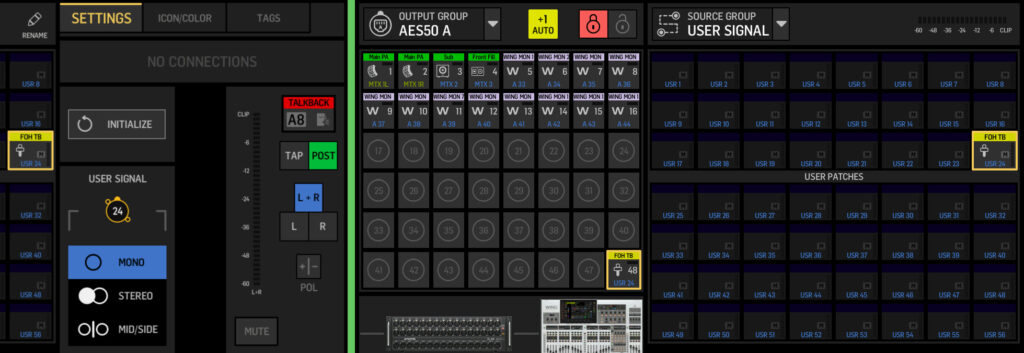
Route your talkback mic through a user signal to the AES50-A output
On WING #2:
- Go to ROUTING → Sources → AES50-A
- Find the talkback on channel 48, rename it ‘FOH Talkback’
- Route it to an aux channel
- Send that aux to your monitor engineer’s headphones or wedge
Monitor Talkback to FOH (WING #2 → WING #1)
Same process in reverse:
On WING #2:
- Set up your talkback mic on an aux channel
- Make sure to disable ‘HA Remote’ for that local input (so you have gain control)
- Route through a user signal set to ‘Post’ fader
- Send to AES50-A outputs 1-16 (which appear as channels 33-48 on WING #1)
On WING #1:
- Find the talkback on AES50-A channels 33-48
- Route it to an aux channel for your headphones
Routing WING #2 Outputs Through WING #1 to the DL32
Since only WING #1 controls the DL32 outputs, you’ll need to route any WING #2 outputs through WING #1 if you want them on the stage box.
Example: WING #2 needs monitor outputs on DL32 XLR Out 5-16.
On WING #2:
- Go to ROUTING → Outputs → AES50-A
- Route your monitor mixes to outputs 1-12
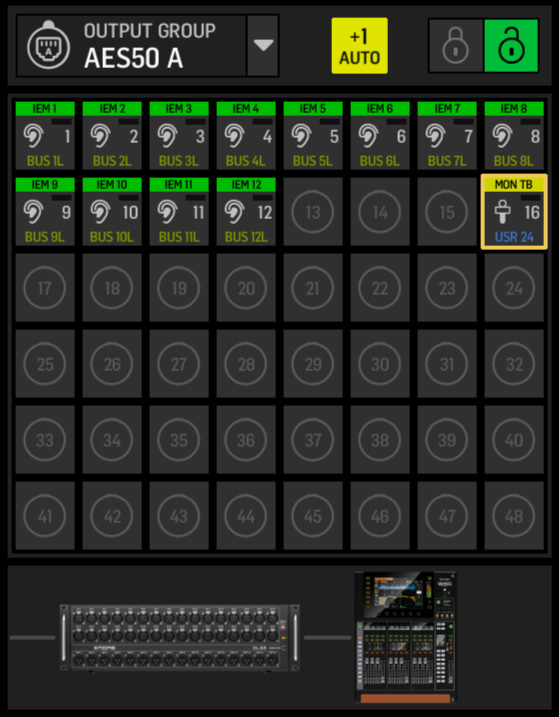
Routing IEM outputs to the FOH Console (WING #1)
On WING #1:
- Go to ROUTING → Outputs → AES50-A (for the DL32)
- Select outputs 5-16
- Change source to AES50-A channels 33-44 (WING #2’s outputs 1-12)
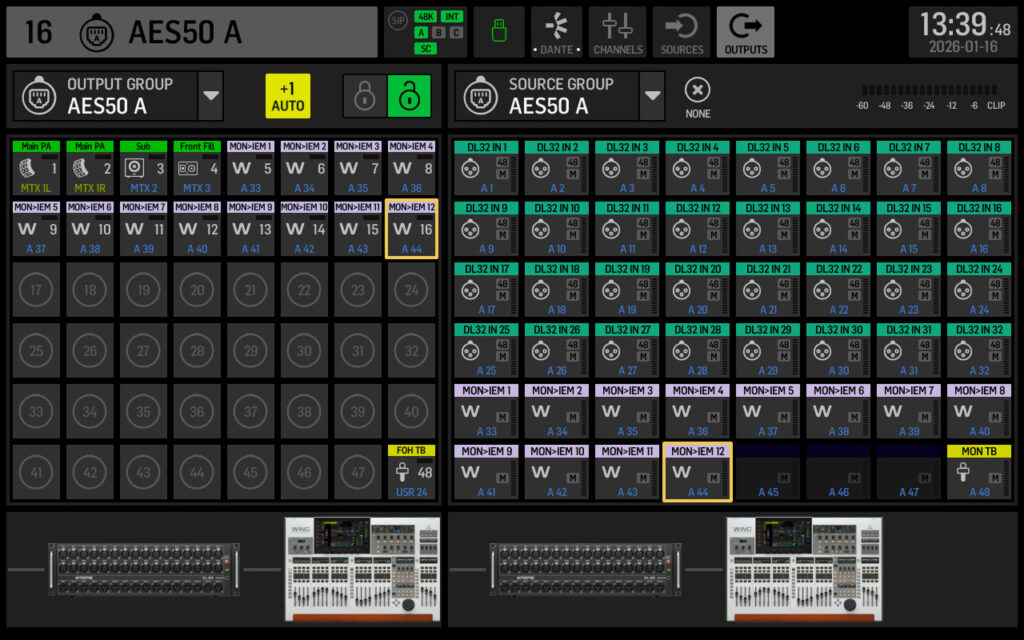
Routing IEM outputs from the Monitor Console (WING #2) to the DL32
Now WING #2’s monitor mixes passes through WING #1 and out the DL32.
Quick Reference Tables
WING #1 (FOH) – Clock Master
| Setting | Value |
| Clock Rate | 48 kHz |
| Sync Source | Internal |
| AES50-A Connection | Midas DL32 Port A |
| Input Control | Full Preamp |
| DL32 Output Control | Yes |
WING #2 (Monitor) – Sync Slave
| Setting | Value |
| Clock Rate | 48 kHz |
| Sync Source | AES50-A |
| AES50-A Connection | Midas DL32 Port B |
| Input Control | Trim Only |
| DL32 Output Control | No (route through WING #1) |
Summary
- Connect WING #1 to DL32 Port A (clock master, preamp control)
- Connect WING #2 to DL32 Port B (sync slave, trim only)
- Both consoles receive all 32 DL32 inputs on AES50-A channels 1-32
- Cross-console sends use channels 33-48
- Only WING #1 controls DL32 physical outputs
- Enable HA Remote on WING #2 to share its local inputs with WING #1
- Use user signals with post-fader taps for talkback routing
This setup gives you full dual-console flexibility with a single stage box – no audio splitters required.
Bonus Download
I’ve created snapshots for both consoles with the routing already configured. All you need to do is:
- Load the FOH snapshot on WING #1, set sync source to ‘Internal’ and set clock rate to ’48 kHz’
- Load the MON snapshot on WING #2, set sync source to ‘AES50-A’ and set clock rate to ’48 kHz’
- Connect WING #1 to DL32 Port A, WING #2 to DL32 Port B
The channel routing, output routing, and talkback patching are all done for you.
Looking for channel and effects presets to go with these snapshots? My WING Preset Bundle includes ready-to-use channel presets for vocals, drums, guitars, and more – plus a full effects library. A perfect addition to get both consoles dialed in quickly.
YouTube Video
For a complete walkthrough of this dual WING setup, watch the full tutorial: