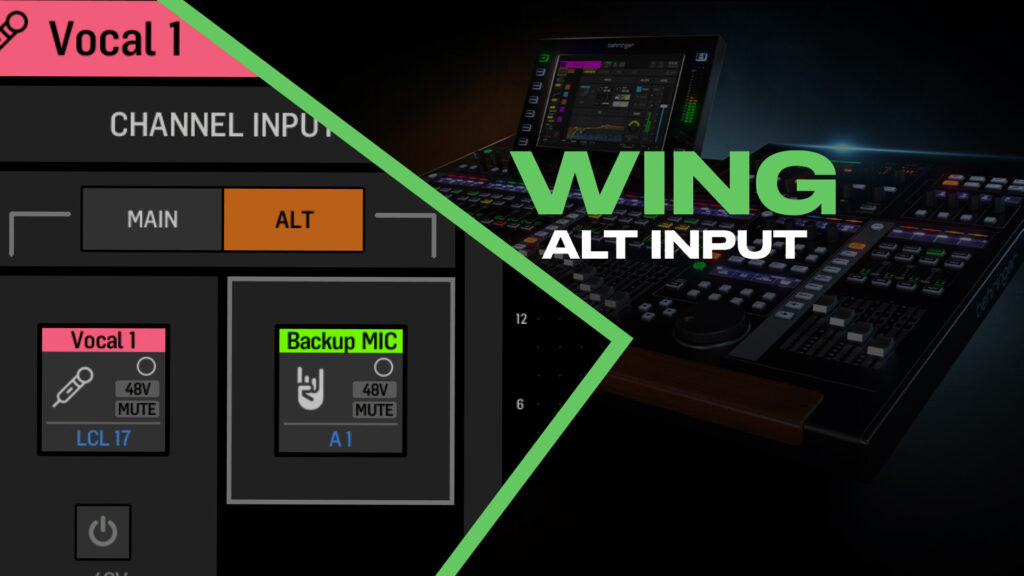
There’s a feature on the Behringer WING that I don’t see a lot of people using, but once you understand it, you’ll wonder how you ever lived without it.
It’s called ‘ALT Input’, and it gives you a built-in backup plan for your most critical channels.
What Is ALT Input?
Every channel on the WING can have two inputs assigned to it: a ‘Main’ input and an ‘ALT’ (alternate) input. You can swap between them instantly – either channel by channel, or globally across the entire console.
This is incredibly useful for two situations: backup microphones and virtual sound check.
Use Case 1: Backup Microphones
Think about your pastor’s wireless headset. What happens if the battery dies mid-sermon, or the RF signal drops out?
With WING ALT input, you can pre-assign a backup wireless handheld as the alternate input. If something goes wrong, you swap to the ALT input and keep going – no re-patching, no scrambling.
For example, you might set up your pastor channel like this:
- Main Input: Wireless 1
- ALT Input: Wireless 8
If the Wireless 1 fails, tap ‘ALT’ on the channel and hand them the backup mic. You’re back up and running in seconds.
This works for vocalists too. Designate one wireless channel as your universal bail mic. If anyone’s mic goes down during the service, hand them the backup and flip that channel to ALT.
Use Case 2: Virtual Sound Check
This is where WING ALT input really shines.
You can set your Main inputs as your live stage sources, and your ALT inputs as playback channels from the WING-Live card (or USB connection). Then with one button press, you swap the entire console to ALT and you’re running a virtual sound check from last week’s recording.
When the band arrives, flip back to Main and you’re ready to go.
This lets you dial in your mix, practice transitions, and train volunteers – all without anyone on stage.
How to Set Up ALT Inputs
There are two ways to work with WING ALT input: ‘Individual’ (channel by channel) or ‘Global’ (swap all channels at once).
Assigning the ALT Input
First, assign your alternate source. On the channel’s ‘Preamp’ page, you’ll see both the ‘Main’ input and the ‘ALT’ input. Tap the ALT input field and select the source you want – maybe it’s a backup wireless mic, or a playback channel from your recording.
To swap this individual channel between Main and ALT, tap either ‘MAIN’ or ‘ALT’ at the top of the Channel Input section.
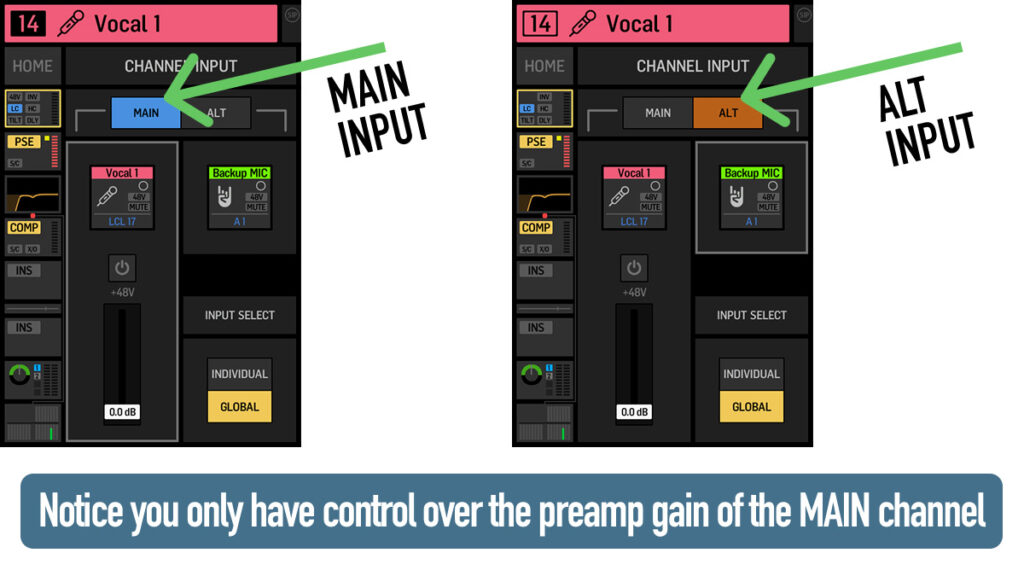
Swap between Main and ALT input on the channel’s Preamp page.
One thing to note: you only have preamp gain control over the Main input from the channel’s Preamp page. For backup microphones, you’ll need to set the gain on your ALT input ahead of time by going to ROUTING → Sources and finding that input source.
Individual vs Global Control
Each channel can be set to swap independently or follow the global toggle. At the bottom of the Channel Input section, you’ll see ‘Input Select’ with two options: ‘Individual’ or ‘Global’.
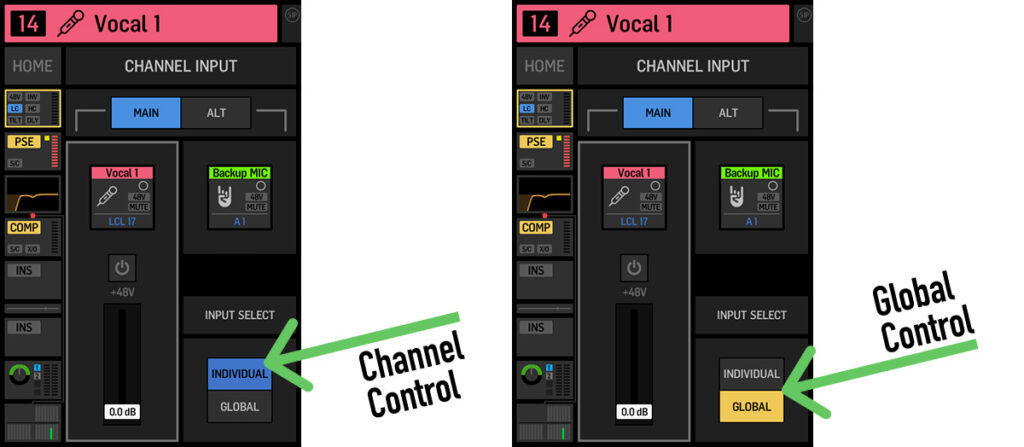
Set each channel to Individual (manual control) or Global (follows the SETUP → Audio toggle)
- ‘Individual’ – This channel only swaps when you manually tap Main/ALT on its Preamp page
- ‘Global’ – This channel follows the global Input Select setting in SETUP → Audio
Swapping Inputs Globally
For virtual sound check, you’ll want to swap multiple channels at once. Go to SETUP → Audio and you’ll see ‘Input Select’ on the left side. This toggles the entire console between ‘MAIN’ and ‘ALT’.
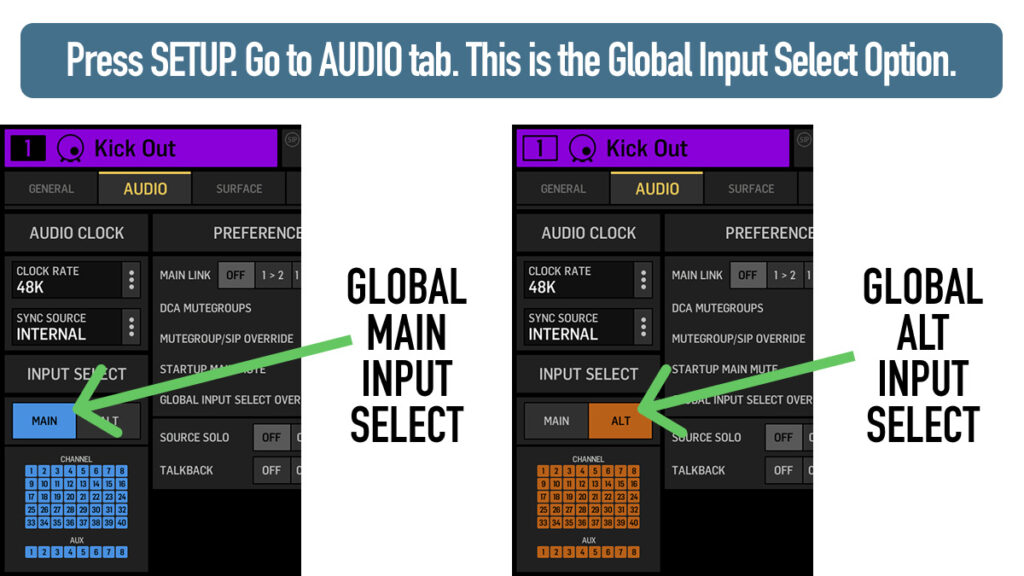
The global Input Select toggle in SETUP → Audio
But not every channel follows this global toggle automatically. You need to tell the WING which channels should follow it.
Setting Up Global Input Select Enable
In the SETUP → Audio screen, tap the small channel grid below the Input Select buttons. This opens the ‘Main/Alt Input’ window. From there, enable the channels that you want to follow the global toggle on the right side in the ‘Global Input Select Enable’ window. If it is the yellow color, that channel will follow the Global Input Select.
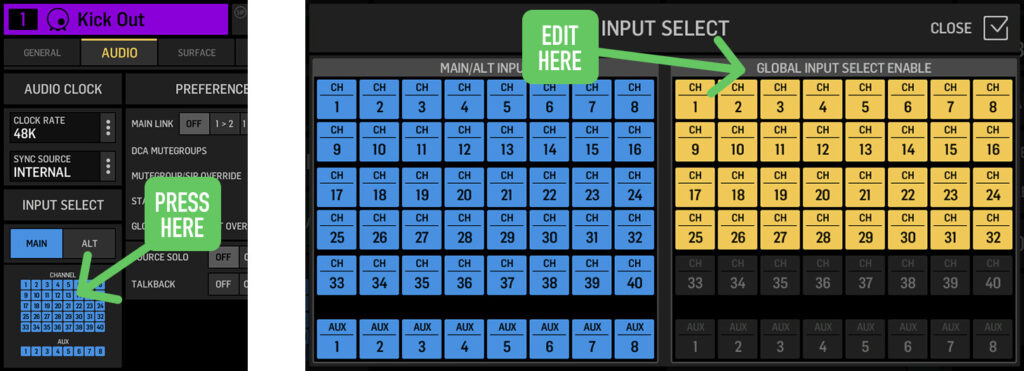
Tap the channel grid, then enable the channels that you want to follow the global toggle on the right side in the ‘Global Input Select Enable’
Here is the result of the settings from the image above. Channels shown in blue are set to ‘MAIN’, and channels in orange are set to ‘ALT’. When you toggle the global Input Select, all enabled channels swap together.
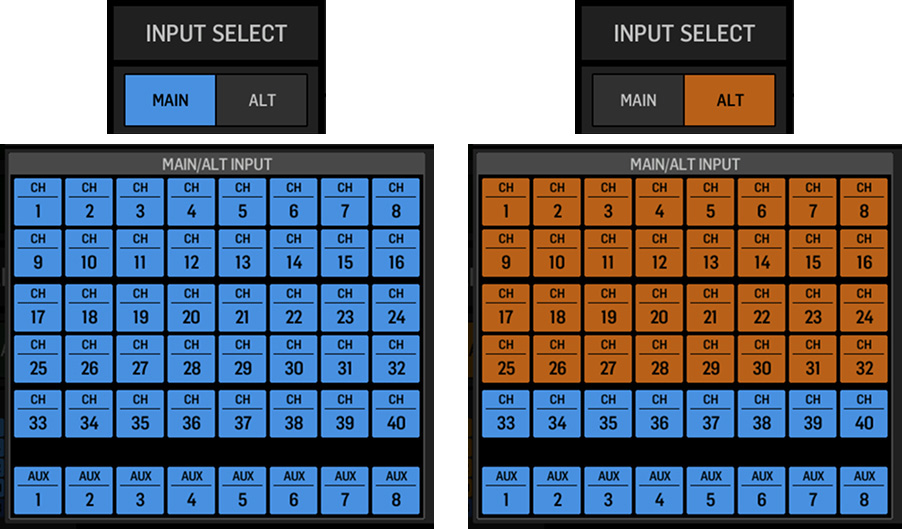
Left: All channels on Main. Right: All enabled channels swapped to ALT.
Quick Tip: Custom Control Button for One-Button Swap
Here’s how to make virtual sound check even faster. You can assign a button on the Custom Controls section to toggle the global Main/ALT setting.
- Press ‘VIEW’ on the Custom Controls section
- Select a button you want to assign
- Scroll to ‘Other’
- Select ‘Global Main Alt’
Now you can flip your entire console between live inputs and virtual sound check with one button press. No navigating menus – just tap and go.
What WING ALT Input Is NOT For
I’ve seen some confusion about this, so let me clear it up: ALT input is not how you send audio to the WING-Live card for recording.
ALT input only selects which source is feeding into a channel. It doesn’t affect where audio is sent out of the console.
If you’re looking to route audio to the WING-Live card for recording, that’s done in the ‘Output Patch’ under Output Group: Expansion Card – completely separate from ALT input. I have a video walkthrough on setting up WING-Live recording here: How to Record with the WING-Live Card
Think of it this way: ALT input is for selecting a different source coming into the channel (great for virtual sound check). Recording output is about where the audio goes after processing (completely different routing).