The Behringer WING Custom Controls section is one of the most powerful features on the console. You can assign virtually any console function to a button or an encoder, giving you instant access to the things you use most without navigating through menus mid-show.
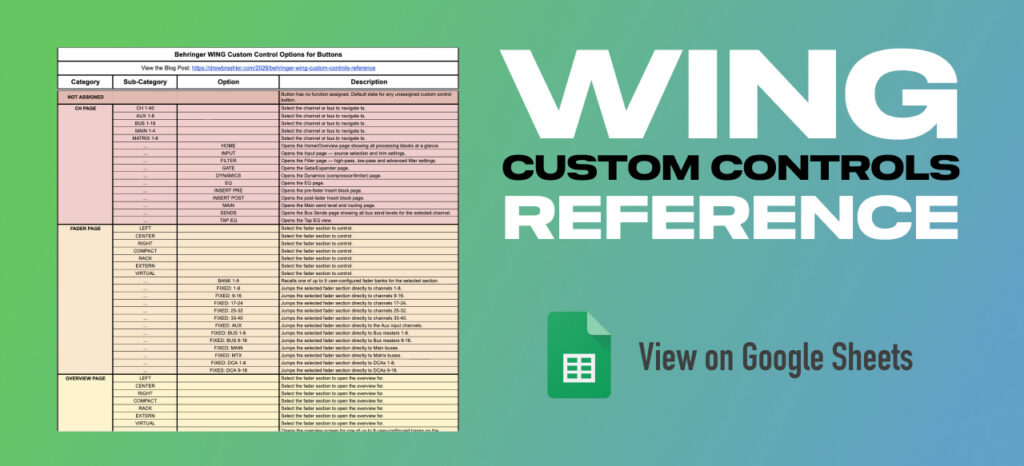
This post is a complete reference for every Custom Control option available on the WING Full Size, WING Compact, and WING Rack. I’ve also included a Google Sheet with the full list of every category, sub-category, and option for both buttons and encoders so you can search and filter to find exactly what you need.
How to Access Custom Controls
As of firmware 3.1, the fastest way to get to the Custom Controls assignment screen is to press ‘Setup’ twice. You can also navigate to the Setup screen and tap ‘CC Edit’ in the upper portion of the display.
From here you can assign functions to any of the 8 buttons and 4 encoders across multiple banks. The WING Compact has these controls below the main touchscreen.
I have a short video showing how to access the Custom Controls page, and another showing how to get more than 16 custom controls on the WING Compact.
Programming Custom Controls
Once you’re in the CC Edit screen, select the button or encoder you want to program by tapping it on the screen. The right side of the display will then show the category and option for assigning a function.
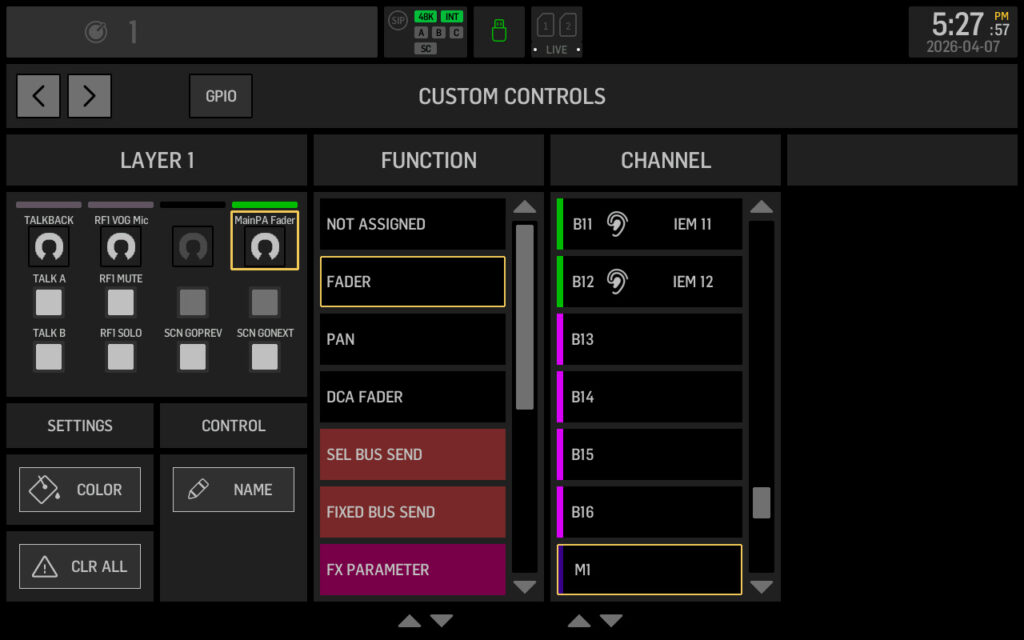
To assign a function, select a category from the list, then drill down through sub-categories and options until you’ve selected the specific function you want. The assignment takes effect immediately.
To rename a custom control, tap ‘NAME’ in the lower left under the Control section. A keyboard will pop up where you can enter your custom label. If you want to highlight a word as a badge, add the | character before it. For example, naming a button “|RF Check” displays RF as a highlighted badge followed by “Check” in normal text. This works for any word and makes it easy to visually categorize your controls at a glance.
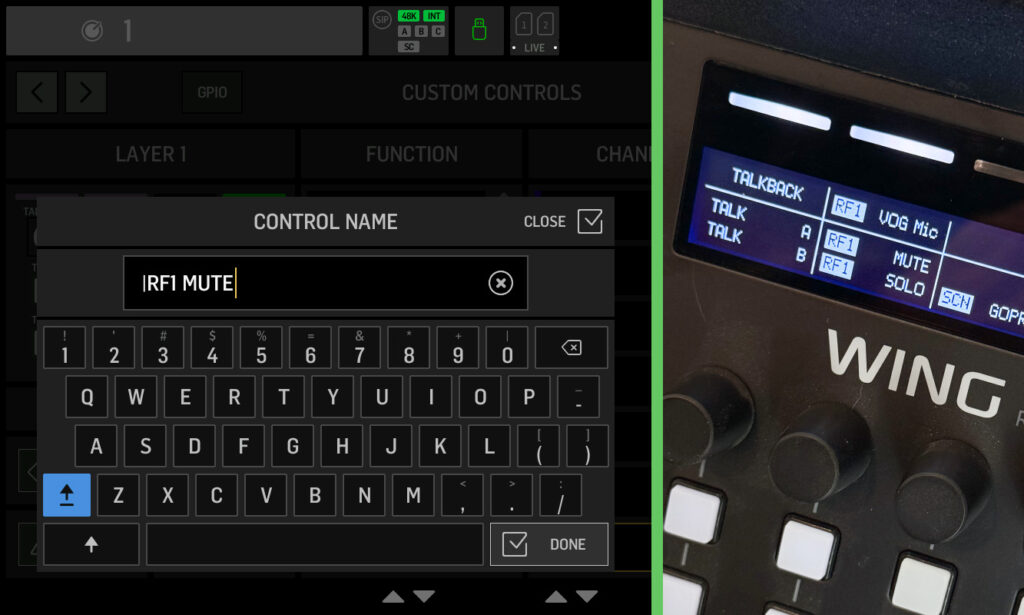
To change the LED color, tap ‘COLOR’ in the lower left. Select your preferred color and the button’s LED will reflect that color when active.
WING Custom Controls for Buttons
Here’s a walkthrough of every category available in the Custom Controls assignment menu for the buttons, with highlights on the most useful options in each.
CH PAGE
Jump directly to a specific page of any channel, bus, main, or matrix. You select the channel first (CH 1-40, AUX 1-8, BUS 1-16, MAIN 1-4, or MATRIX 1-8), then select which page to open: ‘HOME’, ‘INPUT’, ‘FILTER’, ‘GATE’, ‘DYNAMICS’, ‘EQ’, ‘INSERT PRE’, ‘INSERT POST’, ‘MAIN’, ‘SENDS’, or ‘TAP EQ’.
This is incredibly useful for monitor engineers who need to quickly tweak a specific musician’s channel. One button to jump straight to the drummer’s EQ, another to the worship leader’s sends page.
FADER PAGE
Instantly jump any fader section to a specific bank or fixed channel group. You select the fader section first (Left, Center, Right, Compact, Rack, Extern, or Virtual), then choose either a user-configured bank (1-9) or a fixed group like ‘FIXED: 1-8’, ‘FIXED: AUX’, ‘FIXED: BUS 1-8’, ‘FIXED: DCA 1-8’, etc.
Useful for multi-engineer setups or when you need to quickly jump between your input channels and your DCA layer during a service.
OVERVIEW PAGE
Similar to Fader Page, but opens the overview screen for the selected fader section and bank. Same sub-categories and options as Fader Page.
GLOBAL PAGE
Single-tap navigation to any main screen on the console: ‘EFFECTS’, ‘METERS’, ‘CHANNEL INPUTS’, ‘SOURCE SETUP’, ‘OUTPUT ROUTING’, ‘SETUP’, ‘LIBRARY’, ‘CUSTOM CONTROLS’, ‘MONITOR’, ‘USB PLAY/REC’, ‘WING LIVE’, ‘MIXER VIEW’, ‘FADER VIEW’, ‘SENDS VIEW’, ‘MUTE GROUPS’, or ‘FADER LAYER’.
The ‘EFFECTS’ shortcut is one I use constantly. Fast access for making FX adjustments between songs without navigating through menus.
OTHER
This is a catch-all category with some genuinely powerful options:
- Talkback A / Talkback B – Activate either talkback destination
- Global Main/Alt – Toggle all channels between main and alternate sources
- Monitor Dim / Mono / Swap / Mute – Quick monitor section controls
- Fader -∞ / -10 dB / 0 dB – Set the selected fader to a specific level instantly
- Automix X / Automix Y – Toggle either automixer on or off
- Channel Prev / Next – Move channel selection focus
- Solo TAP options – Solo the currently selected channel, bus, main, or matrix
- Meter TAP options – Jump to meter views for channels, buses, mains, matrices, or DCAs
- CC Bank – Switch the Custom Controls to a different bank/page
The ‘Fader 0 dB’ option is one of my favorites. One tap sets the selected fader to unity gain without reaching for it manually.
GPIO
Assign buttons to trigger external devices via the rear-panel GPIO port. Options include:
- GPIO Flag A-D Toggle – Latching on/off for external devices like on-air lights or amp power relays
- GPIO Flag A-D Push – Momentary pulse, active only while held
- Delay 2-30 sec – Adds a delay before the GPIO trigger fires, useful for sequenced startup events like powering amps after the console boots
The WING Full Size has 4 GPIO via two 1/4″ TRS jacks. The WING Compact and Rack have 2 GPIO via one 1/4″ TRS jack.
FADER START
Assign a fader start trigger to any channel (CH 1-40, AUX 1-8, BUS 1-16, MAIN 1-4, or MATRIX 1-8). When that fader is raised above the threshold, a GPIO event can be triggered. This is really a GPIO integration feature – raising the master fader could fire a GPIO output that powers up an amp rack or starts an external playback device. Not useful as a standalone custom control button; it requires a corresponding GPIO configuration to produce any result other than illuminating the CC button.
SHOW CONTROL
For cue-based productions:
- Scene Go – Fires the current show control cue
- Prev Scene / Next Scene – Navigate the cue list without firing
- Go Prev Scene / Go Next Scene – Navigate and immediately fire
Essentially a one-button show runner for musical theatre or complex church services with a cue list. Scene controls are part of the currently loaded Show.
SCENE RECALL
Instantly recall any of the 128 scene slots without touching the Library screen. These slots correspond to scenes within your currently loaded Show that have been assigned a # tag (1-128) in the Library. This is one of the most practical assignments for church engineers. Assign one button per service layout so Sunday morning, Wednesday night, and special events are each one tap away.
DCA MUTE
Mute any DCA group (1-16) with a single button press. Silences all channels assigned to that DCA instantly. Great for killing drums, BGVs, or a full band between sets or during announcements.
SENDS ON FDR
Toggle Sends on Faders mode from a custom button. When active, your faders control send levels to the selected bus rather than main output levels.
FADER SPILL
Open a DCA or bus spill on any fader section with one button. You select the fader section first, then choose the target: DCA 1-16, FX 1-16, BUS 1-16, MAIN 1-4, MATRIX 1-8, AUTO-X, AUTO-Y, or ‘SELECTED CH SENDS’.
Expanding a DCA shows all member channels on the faders for individual level adjustment. This makes tweaking one channel within a group fast without changing your main layer.
FX PAR
Assign a button or encoder to directly control a parameter of any of the 16 effect processor slots. The available parameters depend on which effect is loaded in that slot. This lets you adjust effect parameters without navigating to the Effects screen.
DAW BUTTONS
Full Mackie Control Universal (MCU) style DAW commands. Over 100 options covering:
- Transport – Stop, Play, Record, Rewind, Fast Forward, Return to Zero, Go to End
- Navigation – Up, Down, Left, Right, Zoom, Bank left/right, Channel left/right
- View – Global, MIDI, Inputs, Audio Tracks, Mix, Edit, Transport, and more
- Automation – Read/Off, Write, Trim, Touch, Latch, plus parameter-specific automation toggles
- Edit – Cut, Copy, Paste, Separate, Delete, Undo, Save
- Modifiers – Shift, Option, Ctrl, Alt
- Assign modes – Track, Send, Pan, Plug-In, EQ, Instrument
If you’re using the WING as a DAW control surface, this section gives you hardware button access to virtually any DAW function.
DAW V-POTS
Assign push and turn actions for V-Pots M1-M8 (main surface) and EXT1-EXT16 (extended surface). Also includes ‘JOG WHEEL’ for timeline scrubbing. Push actions typically reset parameters to default, turn actions control parameter values.
MIDI CC (TOGGLE / PUSH)
Send any MIDI CC (0-127) on any channel (1-16). Toggle mode stays active until pressed again. Push mode is active only while held. Useful for controlling external software, lighting consoles, or hardware effects.
MIDI NOTE (TOGGLE / PUSH)
Send any MIDI Note (0-127) on any channel (1-16). Toggle mode sends Note On until pressed again. Push mode sends Note On while held, Note Off on release.
MIDI PGM CHANGE
Send any Program Change (1-128) on any MIDI channel (1-16). Useful for switching presets on external effects units or triggering scenes in show control software like QLab.
USB PLAY/REC
Full transport control for the front-panel USB player/recorder: ‘STOP’, ‘PLAY’, ‘PAUSE’, ‘TOGGLE PLAY/STOP’, ‘TOGGLE PLAY/PAUSE’, ‘NEXT’, ‘PREV’, ‘REC STOP’, ‘RECORD’, ‘REC PAUSE’, and ‘REC NEW FILE’.
The ‘REC NEW FILE’ option stops the current recording and immediately starts a new file, useful for splitting recordings between songs without stopping the session.
SD-1 / SD-2 RECORDER
Full transport control for both SD card recorder slots. Options include: ‘SD STOP’, ‘SD PLAY’, ‘SD RECORD’, ‘SD PAUSE’, ‘SD PLAY/STOP’, ‘SD PLAY/PAUSE’, ‘ADD MARKER’, ‘PREV MARKER’, ‘NEXT MARKER’, ‘PLAY MARKER’, ‘GOTO MARKER’, ‘SELECT SESSION’, ‘PREV SESSION’, and ‘NEXT SESSION’.
SD-1 / SD-2 SESSION
Jump directly to a specific session (1-20) on either SD card.
SD-1 / SD-2 MARKER
Jump directly to a specific marker (1-20) on either SD card, plus ‘RETURN TO ZERO’ to go back to the beginning of the recording.
WING Custom Controls for Encoders
Encoder Assignments
The Custom Controls section also includes encoders, not just buttons. Encoder assignments give you rotary control over levels, parameters, and navigation. Here are the available categories:
FADER
Control the fader level of any channel, aux, bus, main, or matrix by turning the encoder. Useful when you need level control for a specific channel without it being on your current fader layer.
PAN
Control the pan position of any channel, aux, bus, main, or matrix.
DCA FADER
Control the master fader level of any DCA group (1-16).
SEL BUS SEND
Control the send level from the currently selected channel to a specific bus, main, or matrix. The source channel changes dynamically as you select different channels on the surface. This is great for monitor mixing – select a channel and immediately adjust its send to a specific IEM bus without entering Sends on Faders mode.
FIXED BUS SEND
Control the send level from a specific source channel to a specific destination bus. Both source and destination are fixed regardless of what’s selected on the surface. Useful when you always want quick access to a particular send, like the worship leader’s vocal to their IEM bus.
FX PARAMETER
Control a parameter of any of the 16 effect processor slots directly from the encoder. Available parameters depend on which effect is loaded in that slot.
DAW V-POTS
Assign the encoder to control DAW V-Pots M1-M8 (main surface), EXT1-EXT16 (extended surface), or the jog wheel for timeline scrubbing.
MONITORING
Control headphone level, speaker level, or talkback level. This is particularly useful on the WING Rack, which doesn’t have dedicated hardware knobs for speaker level or talkback level.
OTHER
Control lamp brightness (for a gooseneck console lamp), glow brightness (scribble strip and surface lighting), or patch brightness (patch bay area lighting).
MIDI CC
Send any MIDI CC (0-127) on any channel (1-16). Turning the encoder changes the CC value. Useful for controlling external hardware or software parameters via MIDI.
SD-1 / SD-2 RECORDER
Control marker position (scrub within the current marker), scroll through the marker list, or scroll through the session list on either SD card.
My Favorite Custom Control Assignments
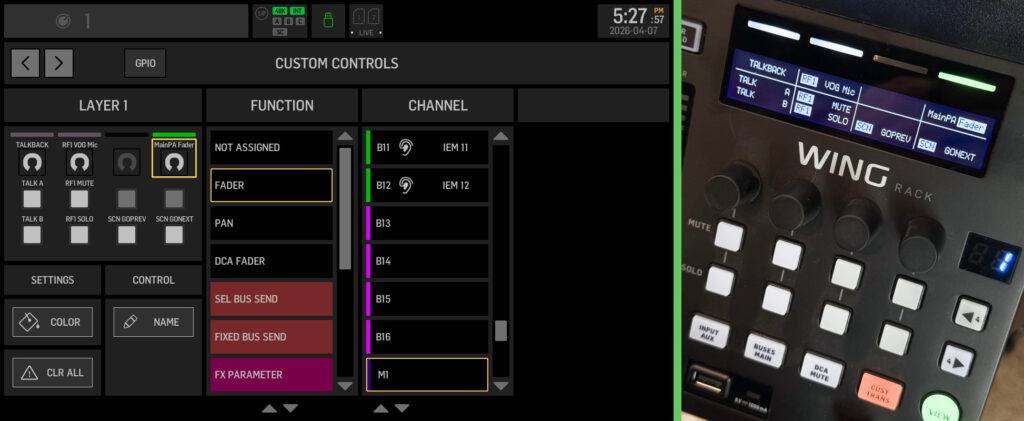
Here are the assignments I find myself using most:
Fader 0 dB – Sets the selected fader to unity gain with a single tap. Useful any time you need to quickly reset a fader without reaching for it manually. Press the Fader 0 dB button, then select any channel you want the fader at +0 dB.
Scene Recall (specific scene) – Instantly jumps to a saved scene without navigating to the Library screen. The scene needs to be part of your currently loaded Show and have a # tag assigned in the Library, this can be any snippet, cue, snapshot, etc. Assign one button per service layout so Sunday morning is always one tap away.
Next Scene / Prev Scene – Steps forward or backward through your Show scene list. Great for moving through a service order without touching the screen, or backing up during rehearsal.
DCA Mute – Mutes an entire DCA group instantly. One tap to kill drums, BGVs, or the full band between sets or during announcements.
Fader Spill – Expands a DCA or bus to show all member channels on the faders. Makes individual adjustments within a group fast without changing your main layer.
Talkback A – Sends your talkback mic to Destination A. I typically have Talkback A routed to just the band’s IEM mixes for private communication.
Talkback B – Sends your talkback mic to Destination B. I typically have Talkback B routed to the band and the main PA. This way I can talk to the band during rehearsal without them having to have IEMs in, or I can address the room for announcements or for a safety situation.
Global Main/Alt – Toggles all channels between their main and alternate sources globally. Useful for virtual soundcheck or switching between two input configurations.
CH Page > [Channel] > EQ – Jumps directly to the EQ page of your most-tweaked channel. Skip the menu navigation entirely.
CH Page > [Channel] > SENDS – Jumps straight to the bus sends page for a specific channel. Fast access to a musician’s IEM mix levels without losing your fader view.
SD Record / SD Play – Starts recording or playback with one button. No need to navigate away from your mix view to capture the service or play back a reference during soundcheck.
Scene Go – Fires the current show control cue. Useful for more structured services, theatrical productions, or any event running a cue list.
CH Page > [Channel] > INSERT PRE or INSERT POST – Jumps directly to the insert block of your most-used effects channel. Much faster than navigating to it through the home screen mid-show.
Download the Complete Reference
I’ve put together a Google Sheet with every Custom Control option available on the WING. You can search, filter by category, and find exactly what you need. There are two separate sheets, one for the Button Assignments and one for the Encoder Assignments.