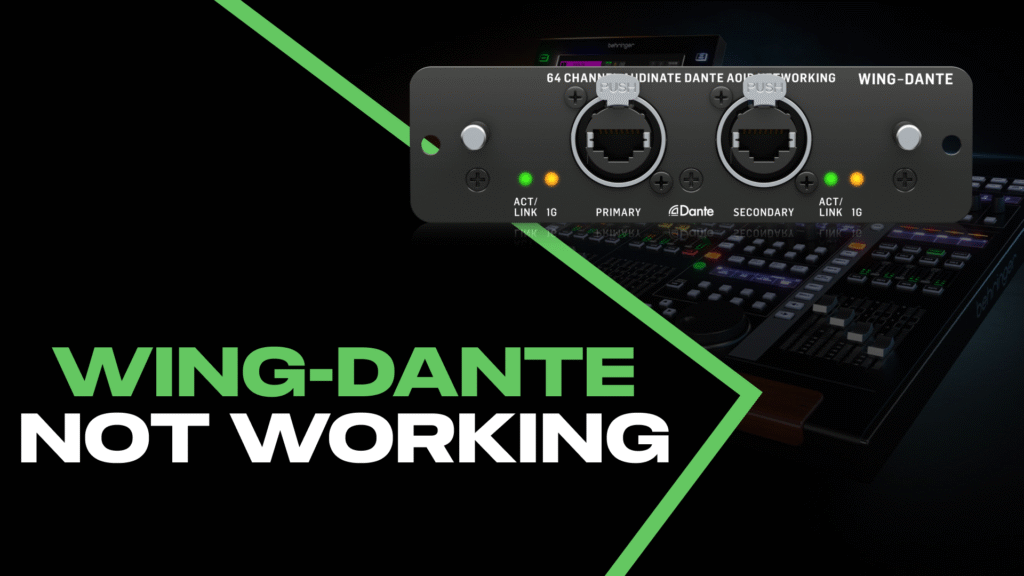
If you just updated your Behringer WING to firmware 3.0.6 or higher and your Dante inputs and outputs suddenly stopped working, you’re not alone. The good news: it’s an easy fix once you know what’s going on. (And if you haven’t updated to 3.1 yet, you should—more on that soon.)
Here’s the deal. Starting with firmware 3.0.6, the WING requires a matching firmware update for your Dante module—whether that’s the external WING-Dante expansion card or the internal AoIP Dante module. Behringer provides the firmware files, and the process is documented, but there’s a catch that trips up almost everyone.
The Hidden Setting in Dante Updater
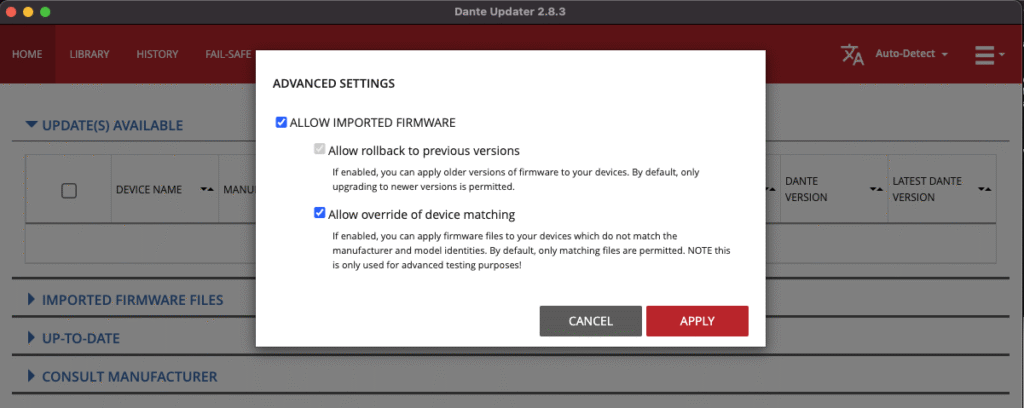
The firmware update process requires you to enable a setting called “Allow override of device matching” in Dante Updater’s Advanced Settings. Simple enough—except if you open Dante Updater normally, that option doesn’t exist.
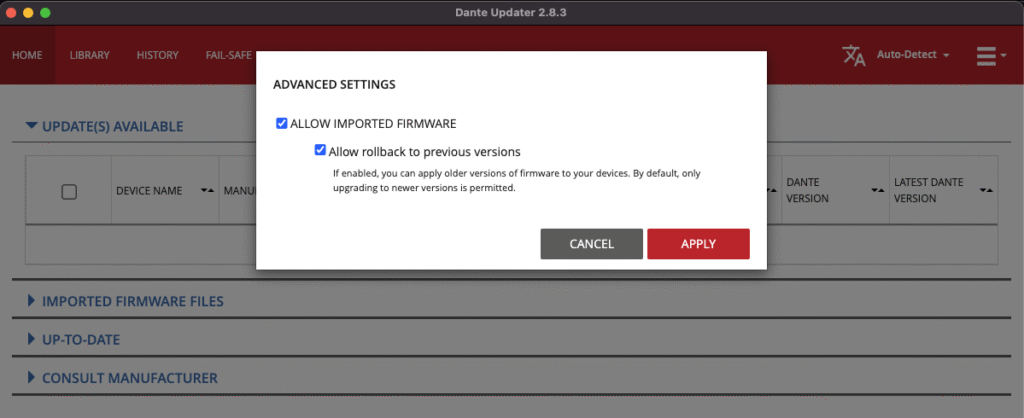
Starting with Dante Updater 2.8.3, Audinate disabled this checkbox by default. To get it back, you need to launch Dante Updater from the command line with a special flag.
How to Enable Override Mode
First, quit Dante Updater and Dante Controller if they’re running.
On Windows:
Open Command Prompt and run:
"C:\Program Files\Audinate\Dante Updater\Dante Updater.exe" --allow-overrideMake sure to include the quotation marks.
On Mac:
Open Terminal and run:
/Applications/Dante\ Updater.app/Contents/MacOS/nwjs --allow-overrideOnce you run that command, Dante Updater will open with the hidden option available. Click the hamburger menu in the top-right corner, go to Advanced Settings, and you’ll now see “Allow override of device matching” as a checkbox you can enable.
Updating Your WING-Dante Firmware
With the override setting enabled, here’s the full update process:
1. Download the firmware files from Behringer
Head to the WING-Dante product page and download the firmware files. There are four versions available depending on your setup:
wing64x64_B_int_BK2— Internal module, Brooklyn IIwing64x64_B_int_BK3— Internal module, Brooklyn 3wing-dante64_B_ext_BK2— External expansion card, Brooklyn IIwing-dante64_B_ext_BK3— External expansion card, Brooklyn 3
Not sure which Brooklyn version you have? I’d recommend downloading all four files and letting Dante Updater identify the correct one for your hardware. If you want to check manually, open Dante Controller on a computer connected to the same network as your WING, click View > Dante Updater, and it will show your device info. You can also physically inspect the Dante card itself—the chip is labeled Brooklyn II or Brooklyn 3.
2. Connect your WING to the Dante network
Make sure your computer running Dante Updater is on the same network as your WING console.
3. Launch Dante Updater with the override flag
Use the terminal commands above to open Dante Updater with the hidden settings enabled.
4. Enable the required settings
Click the dropdown menu in the top-right, open Advanced Settings, and enable:
- ✔ ALLOW IMPORTED FIRMWARE
- ✔ Allow override of device matching
Click Apply.
5. Import the firmware
Navigate to Library > Imported Files, click Import Firmware, and select the firmware file you downloaded.
6. Select your device and update
Go to the Home tab, select your WING-Dante module or expansion card from the Imported Firmware Files list, and click Update Selected Devices. Check the box confirming you understand audio will be interrupted, then click Update Now.
7. Wait and reboot
Let the update complete, then reboot the Dante module when prompted.
Do This Every Time: If you have multiple WING-Dante cards, you’ll need to run the terminal command each time you want to update one—the override setting doesn’t stick. My recommendation? Bookmark this post or save the command in a note on your phone.
What Happens If You Skip This Step?
If you update your WING to 3.0.6+ without also updating the Dante card firmware, your Dante inputs and outputs simply won’t work. The console and the Dante module need matching firmware versions to communicate properly. There’s no way around it—you’ll need to go through this process to get your Dante routing back online.
More Info
Audinate has official documentation on the override mode if you want the technical details.
Video Walkthrough
If you’d prefer to see this walked through on video, here’s a quick overview: