Upgrading from a Behringer X32 to a WING? Don’t get rid of that X32 just yet. You can use your X32 as a stage box for the WING, giving you 32 remote-controlled inputs, even utilize the outputs and the option to run the X32 as a monitor console at the same time.
This is a perfect setup for churches and venues that want to upgrade to a WING without buying a new AES50 stage box right away. Your X32 already has 32 mic preamps with +48V Phantom Power, AES50 connectivity, and 16 XLR local outputs – everything you need.
In this guide, I’ll walk you through the complete setup – from basic stage box configuration with remote preamp control and output routing, all the way to bidirectional talkback between both consoles. Everything here also applies to the Midas M32, since the M32 and X32 are identical under the hood.
What You Need
Before we start, you’ll need a shielded Cat5e cable to connect the X32 to the WING via AES50. The cable can be up to 80 m in length, but it needs to be shielded with the etherCON connector properly grounded to both the RJ45 jack and the etherCON shell. For more on cabling, check out my guide: Cat5e vs Cat6: Best Cable for AES50
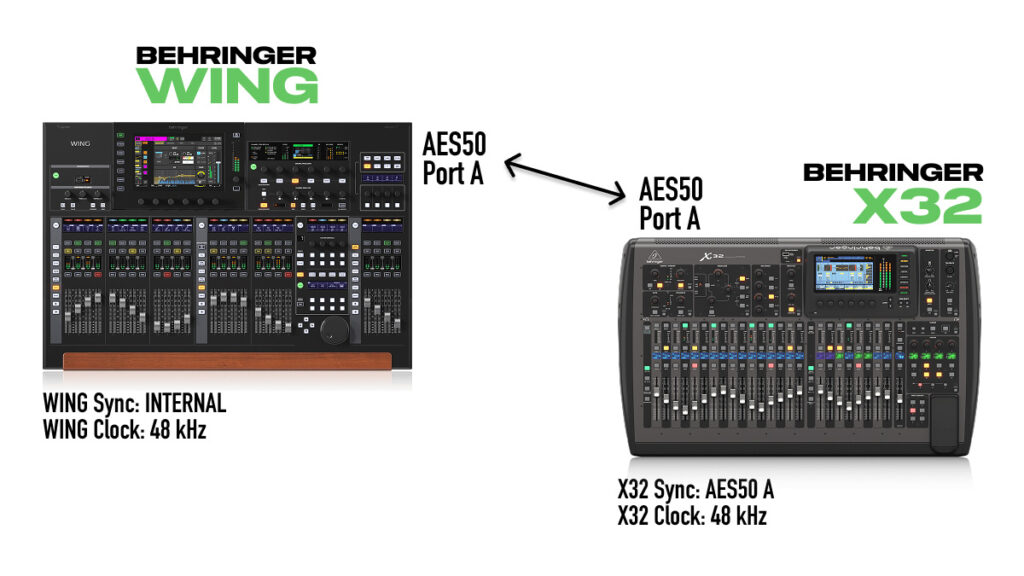
Shielded Cat5e cable connecting the X32’s AES50 Port A to the WING’s AES50 Port A
Setup 1: X32 as a Basic Stage Box
This is the simplest configuration – your X32 becomes a remote stage box and the WING controls the preamp gains.
Step 1: Configure the WING as Clock Master
On the WING, go to SETUP → AUDIO and make sure:
- Clock Rate is set to 48 kHz (my recommendation)
- Sync Source is set to ‘Internal’
The WING is the master clock, and every AES50 device connected to it will sync to it. For more on clock setup, or if you have a more complicated setup, check out my guide: WING Sync Source and Clock: How to Set Up AES50 Correctly
Step 2: Configure the X32 Clock
On the X32, go to SETUP → GLOBAL tab and change:
- Clock Source to ‘AES50 A’ (since that’s where the WING is connected)
- Sample Rate to 48 kHz (must match the WING)
You have to be very careful here – if the sample rates don’t match, you’ll lose connectivity and have all kinds of issues. Both consoles must be set to the same rate. If 44.1 kHz is needed for this setup, then both the WING and the X32 will need to be set to 44.1 kHz.
Step 3: Enable Remote Preamp Control on the X32
On the X32, go to SETUP → PREAMPS tab and enable ‘HA Remote’ for AES50 Port A. This hands over preamp gain control to the WING, so you can adjust all 32 input gains and phantom power control remotely from your WING.
Once enabled, if you try to adjust gain on the X32, it will snap back to whatever the WING has it set to.
Step 4: Route X32 Local Inputs to AES50
On the X32, go to ROUTING → AES50 A and set the outputs to:
- AES50-A Output 1-8: Local 1-8
- AES50-A Output 9-16: Local 9-16
- AES50-A Output 17-24: Local 17-24
- AES50-A Output 25-32: Local 25-32
- AES50-A Output 33-40: P16/Ultranet 1-8
- AES50-A Output 41-48: P16/Ultranet 9-16
This sends all 32 of the X32’s local XLR inputs over AES50 1-32 to the WING. Additionally, the P16/Ultranet 1-16 sends over AES50 33-48 to the WING.
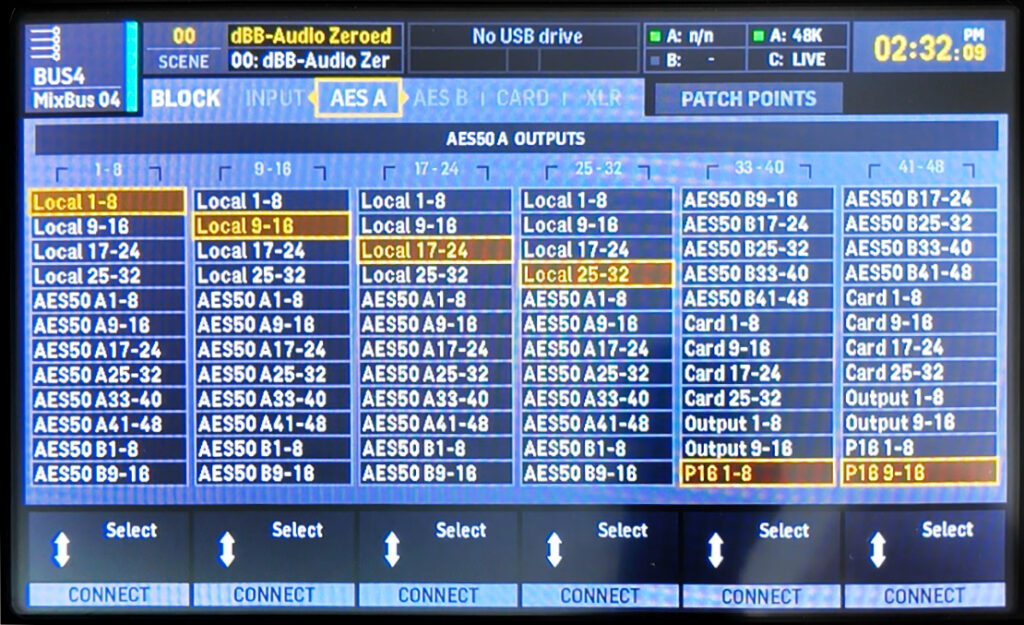
X32 routing screen showing Local 1-32 assigned to AES50 A
Step 5: Route Channels on the WING
On the WING, go to ROUTING → Sources and select the ‘AES50-A’ source group. You’ll see all 32 inputs from the X32, complete with gain adjustment for each preamp.
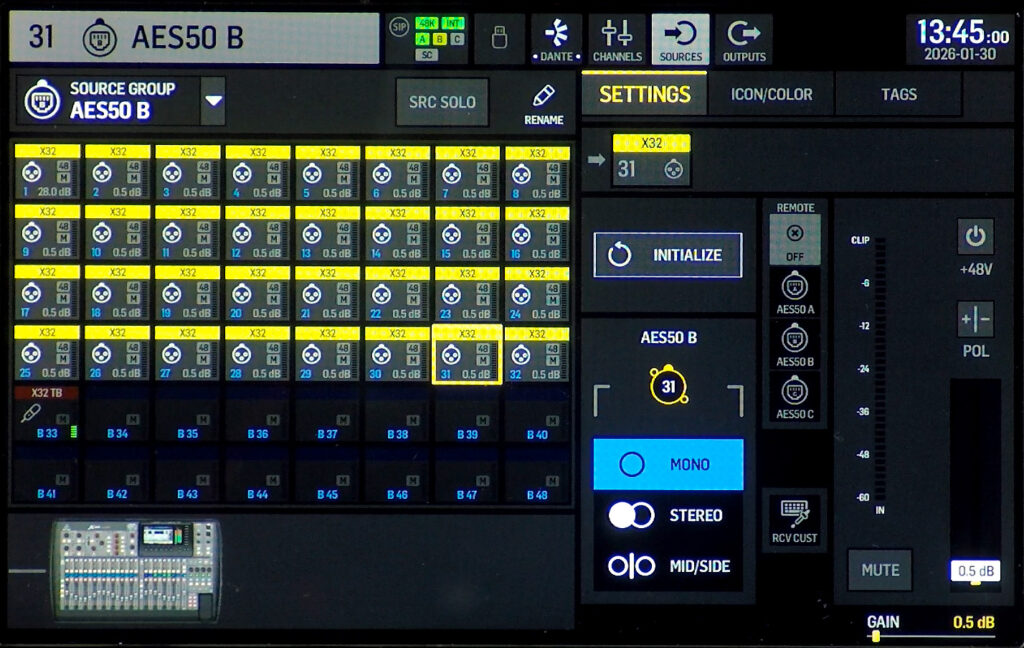
WING routing screen showing X32 inputs on AES50-A with remote gain control
You can rename these sources (I like to label them ‘X32’ so it’s clear where they’re coming from), assign icons and colors, and then route them to your channels just like any other source.
At this point, your X32 is functioning as a 32-input stage box controlled entirely from your WING.
Routing WING Outputs to the X32’s Physical XLR Outputs
One of the biggest benefits of using the X32 as a stage box is access to its 16 physical XLR outputs. You can route bus sends, aux mixes, or direct outs from the WING to the X32’s outputs for driving monitor wedges, IEM transmitters, or any other gear on stage.
On the WING, go to ROUTING → Outputs and select the AES50-A output group. Route whichever buses or mixes you want to send to the X32 on outputs 1-16.
On the X32, go to ROUTING → Outputs and set:
- XLR Outputs 1-4: AES50 A 1-4
- XLR Outputs 5-8: AES50 A 5-8
- XLR Outputs 9-12: AES50 A 9-12
- XLR Outputs 13-16: AES50 A 13-16
Now the X32’s 16 XLR outputs are available as remote outputs for the WING. This is incredibly useful for churches running in-ear monitors – you can route your IEM mixes from the WING and have them come out of the X32’s XLR jacks right there on stage, close to your wireless transmitters.
Practical Output Routing Examples
Here’s where the WING’s flexible output routing really shines. Because the WING lets you assign any source to any output on a one-to-one basis, you have complete control over what comes out of each XLR on the X32.
Example: IEM Monitor Setup
Say you have 6 stereo IEM mixes on the WING. You could route them to the X32’s outputs like this:
- X32 XLR 1-2: IEM Mix 1 (Vocals L/R)
- X32 XLR 3-4: IEM Mix 2 (Drums L/R)
- X32 XLR 5-6: IEM Mix 3 (Keys L/R)
- X32 XLR 7-8: IEM Mix 4 (Electric Guitar L/R)
- X32 XLR 9-10: IEM Mix 5 (Bass L/R)
- X32 XLR 11-12: IEM Mix 6 (Acoustic L/R)
- X32 XLR 13: Floor Wedge Mix 1 (mono)
- X32 XLR 14: Floor Wedge Mix 2 (mono)
- X32 XLR 15-16: Ambient/Cry Room Feed
On the WING, go to ROUTING → Outputs, select the AES50-A output group, and assign your bus masters to outputs 1-16 matching the layout above.
Example: Simple Wedge Setup
If your stage runs floor wedges instead of IEMs, you might only need a few outputs:
- X32 XLR 1: Vocal Wedge Mix
- X32 XLR 2: Drum Wedge Mix
- X32 XLR 3: Keys Wedge Mix
- X32 XLR 4: Guitar Wedge Mix
- X32 XLR 7-8: Main L/R to FOH speakers (if your amps are near the stage)
This is especially useful if you have an X32 Rack, X32 Producer or X32 Compact that only has 8 XLR outputs.
Setup 2: Adding Bidirectional Talkback
Now let’s add talkback in both directions so the FOH engineer at the WING can talk to the X32 on the stage, and the X32 operator (or an MD) can talk back to FOH.
X32 Talkback to the WING
On the X32, go to ROUTING and navigate to the P16 tab. Set output 1 to ‘Talkback’. This routes the X32’s talkback mic over AES50 to the WING.
On the WING, the X32 talkback will arrive on AES50-A channel 33. Route this to an aux channel (I use Aux 6 for this) and you’ll be able to hear the X32 operator or MD whenever they press the X32 talk button.
WING Talkback to the X32
This one takes a couple extra steps because we want the talkback to only send when the talk button is pressed (post-fader), not constantly.
On the WING:
- Set up your talkback mic on an aux channel (I use Aux 8) with the input assigned to wherever your talkback mic is connected This is done on SETUP → Audio, then select either Ch 40 or Aux 8 for the talkback.
- Go to ROUTING → Sources and select the ‘User Signal’ source group
- On User Signal 24, assign your talkback aux channel and set it to ‘Post’ – this way the signal only sends when you press the talk button
- Go to ROUTING → Outputs and select your AES50-A output group
- Route User Signal 24 to an AES50-A output channel (I use channel 33)
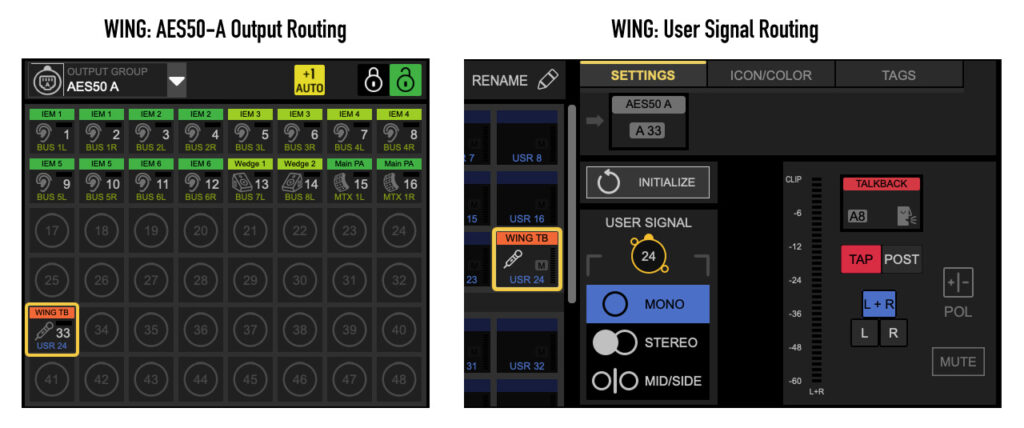
WING output routing showing talkback assigned to AES50-A
On the X32:
- Go to ROUTING → Input and set Aux In 1/2 to ‘AES50 A 33-34’
- Your WING talkback will now arrive on the X32’s Aux 1 channel
Now both consoles can communicate. When you press talkback on the WING, the X32 hears it. When the X32 operator presses their talkback, the WING hears it.
Quick Reference: X32 Settings
| Setting | Location | Value |
| Clock Source | SETUP > Global Tab | AES50 A |
| Sample Rate | SETUP > Global Tab | 48 kHz |
| HA Remote | SETUP > Preamps Tab | AES50 A Enabled |
| AES50 A Routing | ROUTING > AES50-A Tab | Local 1-32, P16 1-16 |
| XLR Outputs 1-16 | ROUTING > Outputs | AES50 A 1-16 |
| Talkback Output | ROUTING > P16 Tab | P16 Output 1 = Talkback |
Quick Reference: WING Settings
| Setting | Location | Value |
| Sync Source | SETUP > Audio | Internal |
| Clock Rate | SETUP > Audio | 48 kHz |
| X32 Inputs | ROUTING > Sources > AES50-A | Channels 1-32 from X32 Local Inputs. Channels 33-48 from X32 P16 Outputs |
| X32 XLR Outputs | ROUTING > Outputs > AES50-A | Route to AES50-A Output 1-16 to have source output on X32 XLR Outputs |
| WING Talkback User Signal | ROUTING > Sources > User Signal | Talkback Channel to User Signal 24, Post Fader |
| WING Talkback Send | ROUTING > Outputs > AES50-A | AES50-A Out 33 from User Signal 24 |
| X32 Talkback to WING | ROUTING > Sources > AES50-A | AES50-A Input 33 |
Want to Go Further?
If you want to take this a step further and use the X32 as both a stage box and a dedicated monitor console, the same dual-console concepts apply. Check out my guide on connecting two Behringer WINGs to the same DL32 for the full breakdown on dual-console routing – the principles are identical whether your second console is a WING, X32, or M32.