If you’ve ever connected a stage box to your Behringer WING and had no audio, no preamp control, or experienced random pops and clicks, there’s a good chance your sync settings are wrong. Getting WING sync source and clock settings right is essential for any digital audio network-whether you’re connecting a single S32 stage box or building a multi-console system with Dante.
In this guide, I’ll explain what clock and sync actually do, then walk through the correct settings for common setups.
What Is Clock Rate (Sample Rate)?
Every digital console samples audio a certain number of times per second. This is your clock rate, also called sample rate. On the WING, you’ll find this setting in SETUP → Audio.
The WING gives you two options:
- 48 kHz – 48,000 samples per second
- 44.1 kHz – 44,100 samples per second
My recommendation: Always use 48 kHz for live sound.
Here’s why:
- Lower latency – Digital consoles have a fixed number of samples of latency. At a higher sample rate, those samples pass through faster, reducing your overall latency.
- Higher frequency capture – The Nyquist frequency (the highest frequency you can capture) is half your sample rate. At 48 kHz, you can theoretically capture audio up to 24 kHz. At 44.1 kHz, it’s about 22 kHz. While most of us can’t hear above 20 kHz anyway, the extra headroom doesn’t hurt.
- Streaming and broadcast compatibility – 48 kHz is the standard for video and broadcast. If you’re recording for anything other than CD production (which uses 44.1 kHz), 48 kHz is the safer choice. Plus you can always downsample 48 kHz to 44.1 kHz during an export from your DAW or editing software.
The human hearing range is roughly 20 Hz to 20 kHz-and if you’ve been around loud music for a while, your high-frequency hearing may have dropped even further. (Quick test: if you can still hear the whine of an old tube TV, that’s around 16 kHz, and you’re doing pretty well.)
What Is Sync Source?
Here’s where things get critical. When you connect multiple digital devices together, they all need to sample audio at exactly the same time. If one device is sampling at a slightly different rate than another-even by a tiny amount-you’ll get audio problems: dropouts, pops, clicks, or no audio at all.
Sync source determines which device is the “primary” that all other devices follow.
Think of it like a metronome for a band. Everyone needs to follow the same tempo. If each musician follows their own metronome, even if they’re all set to 120 BPM, tiny variations will cause the performance to fall apart.
In a digital audio network:
- One device is primary – It generates the clock signal
- All other devices are secondary – They receive and follow that clock signal
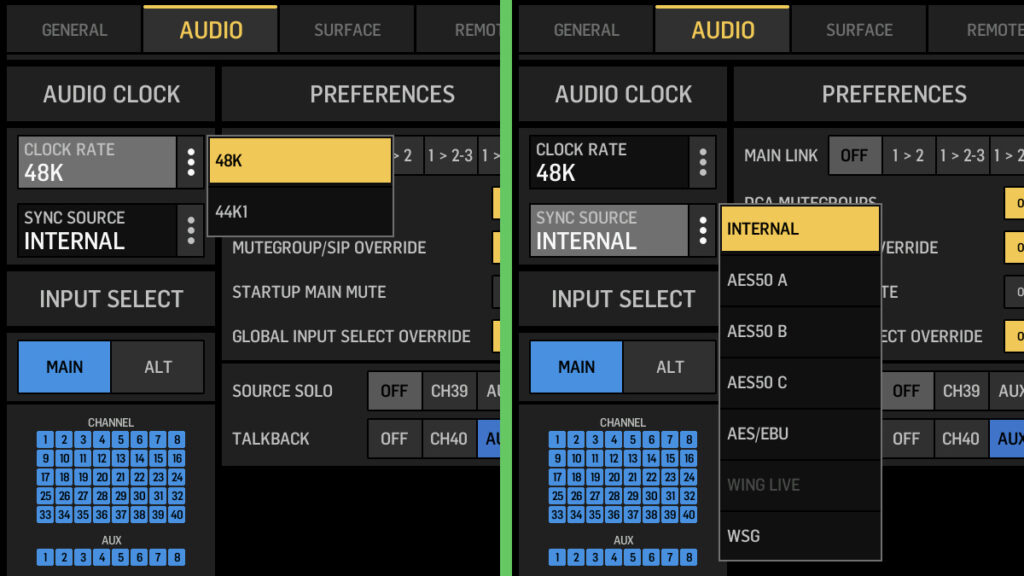
Behringer WING Sync and Clock options inside of the Setup menu
On the WING, you select your sync source in SETUP → Audio → Sync Source. Your options include:
- Internal – The WING generates its own clock (use this when WING is primary)
- AES50 A / B / C – Sync to a device connected on that AES50 port
- AES/EBU – Sync to an AES3 device connected to the AES/EBU port
- Expansion Card – Sync to a Dante or WSG card in the expansion slot
- Module – Sync to the internal module (Dante, WSG, etc.)
What Happens When Sync Is Wrong?
If your sync settings are incorrect, you’ll know pretty quickly:
- No preamp control over your stage box
- No audio coming from your inputs
- Audio dropouts, pops, and clicks
- Devices appear connected but don’t pass audio
The good news is that fixing sync issues is usually straightforward once you understand which device should be primary.
Setup 1: WING + S32 Stage Box
This is the most common setup, a WING connected to an AES50 stage box like the S32 (or S16, SD16, SD8, DL32, etc.).
Connections:
- WING AES50 Port A ↔ S32 AES50 Port A
Settings:
- WING Sync Source: Internal
- WING Clock Rate: 48 kHz
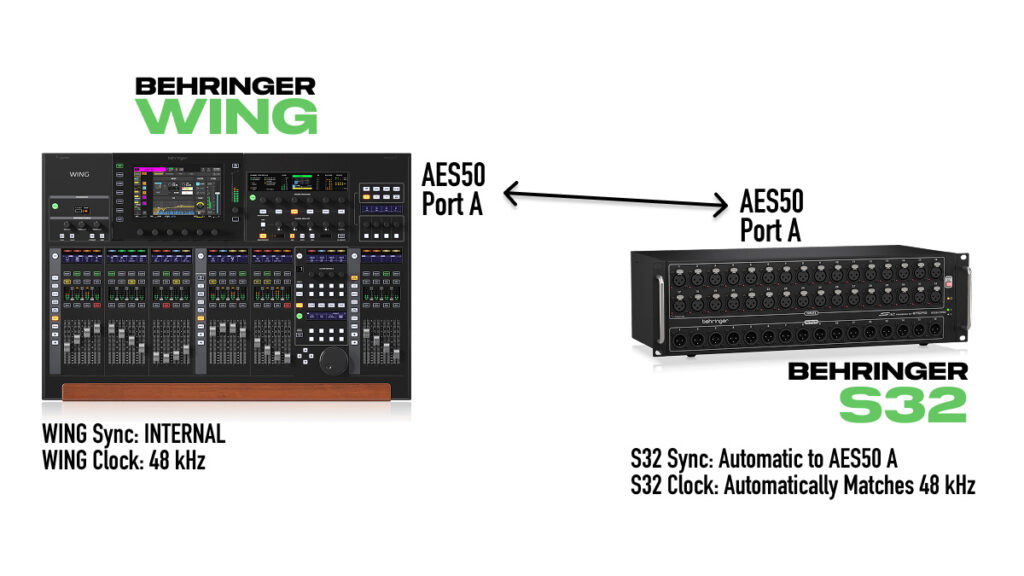
Setup 1: WING as primary with S32 stage box
The S32 automatically slaves to whatever console it’s connected to on the AES50 A port—there’s nothing to configure on the stage box side. The WING is primary, set to Internal sync, and the S32 follows. If you are using an Behringer S16 or a Midas DL16, you will need to make sure the stage box is not set as the Master, if it is you will see the SA Master led turned on. In which case you will need to change to a standard mode inside the menu.
For more on choosing the right cable for your AES50 connections, check out my Cat5e vs Cat6 comparison for AES50.
Setup 2: WING + X32 (Console-to-Console)
When connecting two consoles via AES50, you need to choose which one is primary. In this example, the Behringer WING is primary and the Behringer X32 receives clock from it.
Connections:
- WING AES50 Port A ↔ X32 AES50 Port A
WING Settings:
- WING Sync Source: Internal
- WING Clock Rate: 48 kHz
X32 Settings:
- Press the SETUP button
- Navigate to the Global page
- Use the 2nd rotary knob to set Clock to 48 kHz
- Set Sync to AES50 A
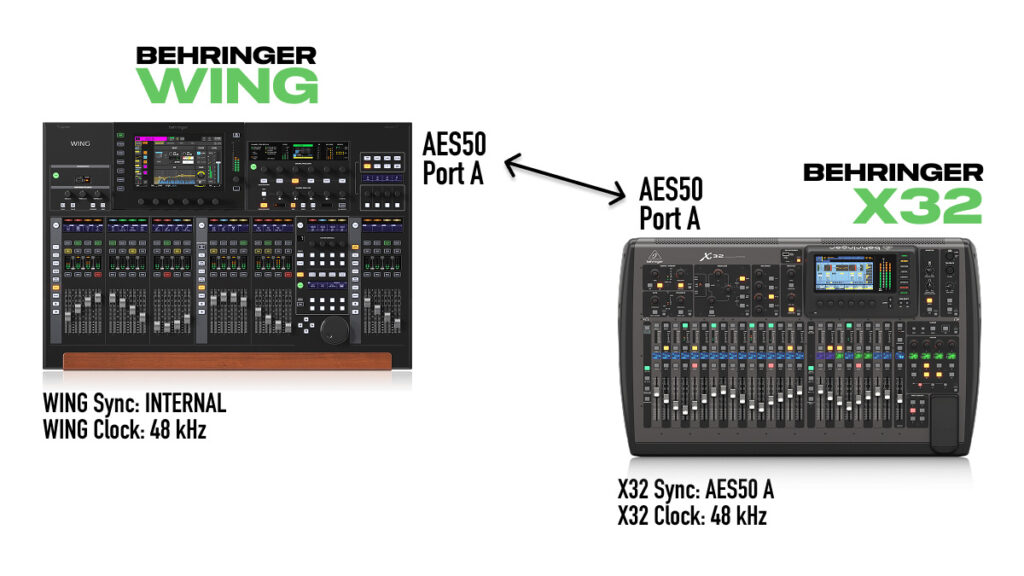
Setup 2: Behringer WING as primary with Behringer X32 as secondary console
The X32 is now receiving its clock from the WING via AES50 A. Both consoles are running at 48 kHz and are perfectly in sync.
Setup 3: Dual WING System (Monitor + FOH)
For larger productions with a dedicated monitor engineer, you might have two Behringer WINGs—one at monitor position and one at front of house—sharing a single S32 stage box.
In this setup, the monitor WING is typically primary because it’s closest to the stage and directly connected to the stage box. The FOH WING receives audio via AES50 B.
Connections:
- WING-MON AES50 Port A ↔ S32 AES50 Port A
- WING-MON AES50 Port B ↔ WING-FOH AES50 Port A
WING-MON (Monitor Console) Settings:
- Sync Source: Internal
- Clock Rate: 48 kHz
WING-FOH (Front of House Console) Settings:
- Sync Source: AES50 A
- Clock Rate: 48 kHz
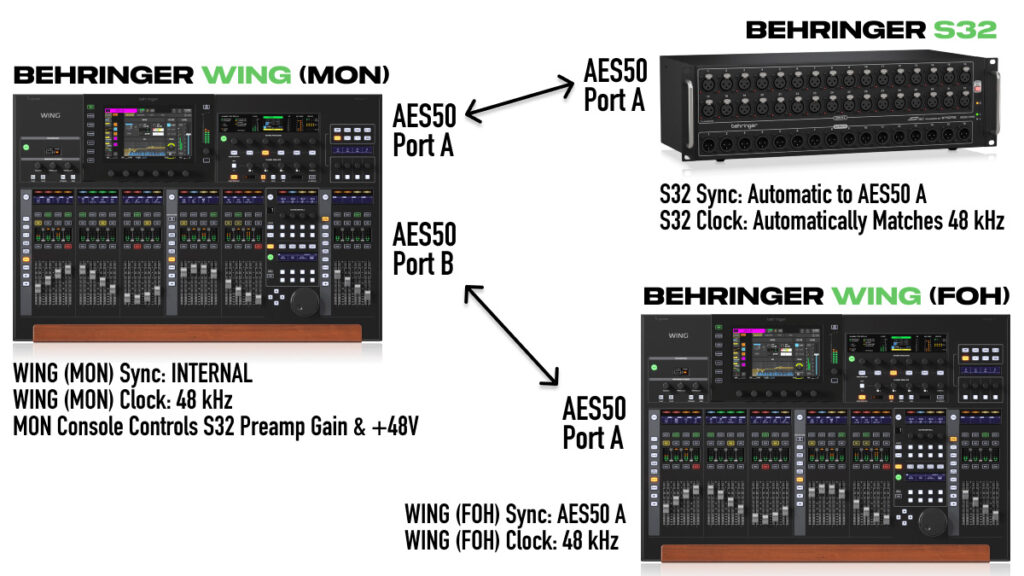
Setup 3: Two Behringer WING consoles sharing AES50 Stage Box S32
Important routing note: The monitor WING controls the preamp gain and phantom power for the S32. Inside the WING-MON routing, you’ll need to duplicate the S32 patch to AES50 B so that WING-FOH receives all the inputs. This way, both consoles get the same source audio from the stage box.
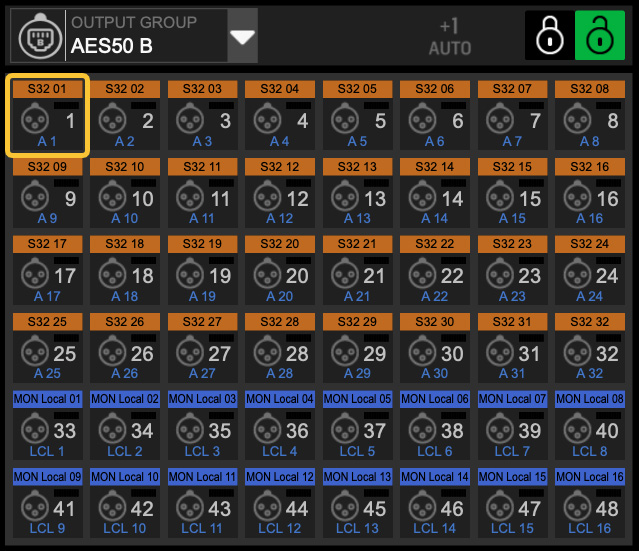
We can see the routing example from the Behringer WING at monitors above. The S32 Stage Box on AES50 A of the monitor WING routed to output AES50 B 1-32. Additionally, the monitor WING local inputs 1-16 are routed to output AES50 B 33-48. The WING at front of house would receive its inputs over AES50 A so it would receive those 48 channels.
Setup 4: WING on a Dante Network (with DM7)
When using the WING-DANTE expansion card on a Dante network with other consoles (like a Yamaha DM7), there’s an important limitation to understand: the WING can only operate at 48 kHz.
Some Yamaha consoles like the DM7, DM3, and Rivage can run at 96 kHz. However, if your Dante network is running at 96 kHz, the WING-DANTE card will show up on the network, but you won’t be able to create any audio connections to it.
Solution: Set your entire Dante network to 48 kHz if the Behringer WING needs to be part of it.
Network Configuration:
- Yamaha DM7C running at 48 kHz
- DM7C set as Preferred Leader in Dante Controller
- WING-DANTE expansion card connected to primary Dante network
WING Settings:
- Sync Source: Expansion Card
- Clock Rate: 48 kHz

Setup 4: WING on Dante network with WING-Dante Expansion card and the DM7C as Preferred Leader
In this configuration, the WING pulls its clock from the Dante network via the expansion card. The DM7C is the Dante clock leader, and all devices on the network—including the WING—follow that clock.
For more on the WING-DANTE expansion card, including a fix for issues after firmware updates, check out my WING-DANTE Fix Guide. One more thing to mention about the WING-DANTE expansion card is to NOT click “sync to external” inside of Dante Controller. We want the WING-Dante pulling the clock and sync from the primary clock leader on the Dante network.
Quick Reference Table
| Setup | Primary Device | WING Sync Source | Secondary Device Sync |
| WING + S32 | WING | Internal | S32 auto-slaves |
| WING + X32 | WING | Internal | X32: AES50 A |
| WING-MON + S32 + WING-FOH | WING-MON | Internal | WING-FOH: AES50 A |
| WING + Dante (DM7) | DM7C (Dante Leader) | Expansion Card | N/A |
Summary
Getting your WING sync source right comes down to two things:
- Set your clock rate to 48 kHz – Better latency, more headroom, broadcast-ready
- Choose one primary device – That device uses Internal sync; everything else syncs to it
If you’re just using a WING with AES50 stage boxes, set sync to Internal and you’re done. When adding additional consoles or joining a Dante network, make sure you’ve identified which device is primary and configure your sync source to follow it.
YouTube Video
For a complete walkthrough of WING sync and clock settings, watch the full tutorial: