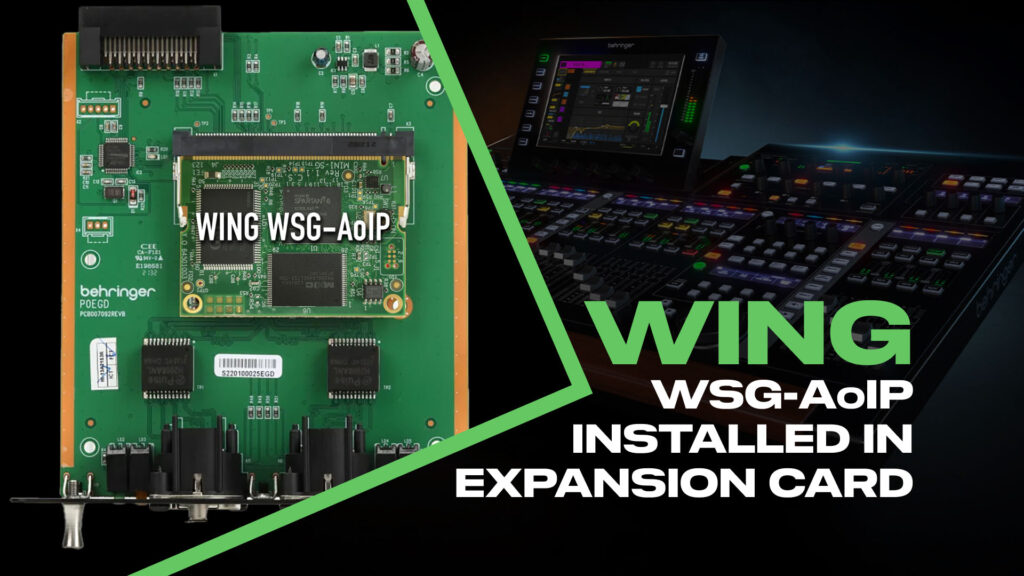
If you’re a touring engineer who wants WING Waves SoundGrid processing on rental consoles, Firmware 3.1 just made your life a lot easier. You can now install the WSG-AoIP module into the WING-DANTE expansion card carrier—giving you a portable Waves SoundGrid setup that swaps between Behringer WING consoles in seconds.
No more opening up the console to access the internal module. No more hoping the house WING has SoundGrid installed. Just pop in your expansion card, run a quick command, and you’re processing.
Why This Matters for Touring Engineers
The Behringer WING has two places you can install audio-over-IP modules:
- Internal module slot — Requires removing multiple screws and opening the console. Behringer recommends only factory service centers do this install.
- Expansion card slot — Accessible from the back panel, two screws swap
Previously, if you wanted WING Waves SoundGrid, you had to install the WSG-AoIP module in the internal slot. That’s fine for a console you own, but not practical when you’re walking into a venue with a rental WING and need to be set up in 20 minutes.
With Firmware 3.1, Behringer enabled the WING-DANTE expansion card carrier to accept the WSG-AoIP module. Now you can travel with your SoundGrid setup on an expansion card that slides in and out of any WING in seconds.
What You Need
To set up a portable WING Waves SoundGrid rig, you’ll need:
- WING-DANTE Expansion Card — The physical card carrier (you’ll remove the Dante module)
- WSG-AoIP Module — The Waves SoundGrid audio-over-IP module
- Waves SoundGrid Server — Processes your plugins (Impact/Extreme/etc.)
- Computer with Waves SuperRack SoundGrid — Controls plugin routing and settings
- WING running Firmware 3.1 or later
- Cat5e, Cat6, or Cat6a STP Ethernet cables
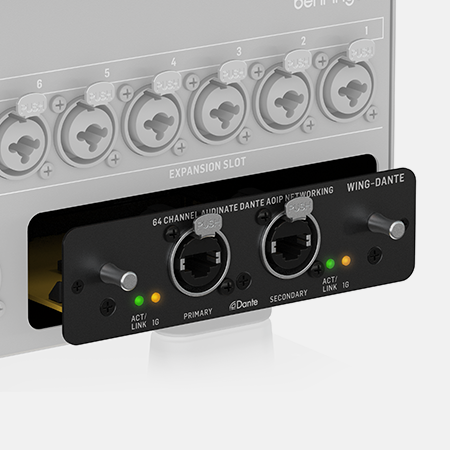
The WING-Dante expansion card slot on the back panel
How to Install the WSG-AoIP Module
Here’s the process for setting up your portable WING Waves SoundGrid rig:
- Remove the Dante-AoIP module from the WING-DANTE expansion card carrier
- Install the WSG-AoIP module in its place
- Insert the expansion card into the WING’s expansion card slot
- Hold the UTILITY button while powering on the console
- In the Console Options dialog, enter: CRD-WDWSG
- Restart the console
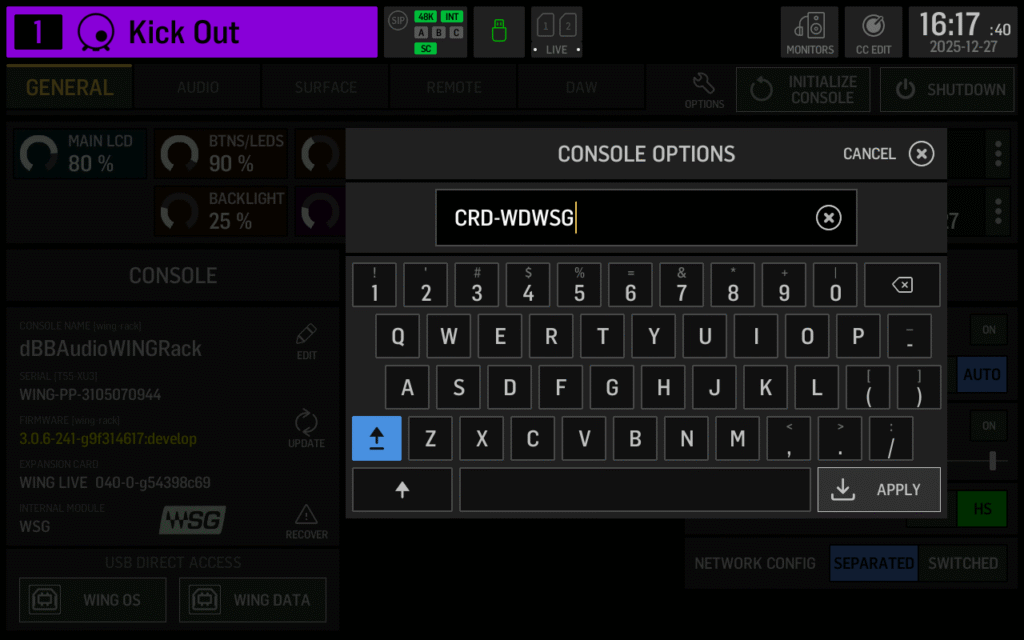
The Behringer WING Console Options screen accessed by holding UTILITY during boot when installing the Waves WSG-AoIP for the WING
That’s it. Your WING now recognizes the WSG-AoIP module in the expansion card slot, and you have 64×64 channels of SoundGrid I/O available.
Switching back to Dante: If you need to swap back to a Dante module on the Expansion Card, follow the same process but enter CRD-WDANTE instead.
Why SoundGrid Over SuperRack Performer?
If you’re new to Waves plugin processing on the WING, you might be wondering why you’d go through this setup when SuperRack Performer exists. Here’s the difference:
Waves SuperRack Performer (USB)
Waves SuperRack Performer connects via USB and runs plugins directly on your laptop. It’s simpler and cheaper to set up—no server required, no network configuration.
The downside is latency. Your computer needs a buffer to process audio, and even with a fast machine, you’re looking at around 10 ms of round-trip latency depending on buffer size. That’s noticeable on vocals and can cause issues with monitor mixes. The latency here can be masked in larger rooms when mixing FOH or when mixing on Broadcast. But if using Waves Plugins with IEM’s, you will want to target less latency.
CPU power is the other downside with SuperRack Performer, without a very powerful computer, you might run into maxing out your CPU depending on how many plugins you use. To counter this, running higher buffers will lessen the load on your CPU, but it will come at the cost of added latency.
Waves SoundGrid (WSG-AoIP)
Waves SoundGrid uses a dedicated SoundGrid server for plugin processing and audio-over-IP for transport. The round-trip latency from WING to server and back is less than 1 ms—essentially imperceptible.
The tradeoff is complexity and cost. You need the WSG-AoIP module, a Waves SoundGrid server, and Waves SuperRack SoundGrid (not Performer). But for live applications where latency matters, it’s the only way to get Waves plugins on your channels without compromise. With latency of sub 1 ms, it is fast enough to run with IEM’s and the band will not notice any latency.
Waves SoundGrid Servers are optimized for plugin audio processing, so you can run more plugins at this low latency than you could with a computer running SuperRack Performer.
| Waves SuperRack Performer | Waves SuperRack SoundGrid | |
| Connection | USB | Network (WSG-AoIP) |
| Latency | ~10 ms | < 1 ms |
| Server Required | No | Yes |
| Cost | Lower | Higher |
| Best For | Studio, virtual soundcheck, FOH in Large Rooms | Live mixing in all rooms, monitors, for priority of low-latency |
Want a deeper dive on Waves SoundGrid Latency with the Behringer WING?
For a deeper dive into latency measurements with different setups, check out my WING Plugin Latency Comparison.
SoundGrid Network Basics
When using the WSG-AoIP module in the expansion card slot, your SoundGrid network connects through the network ports on the expansion card itself—not the WING’s built-in network ports. This is perfect for keeping your SoundGrid network separate from your WING Control network. That way you can focus on the remote clients on the WING Control network like WING Co-Pilot, WING Edit or WING-Q.
Connect your SoundGrid server and laptop running SuperRack SoundGrid to the expansion card’s network ports. The card functions as a switch, so you don’t need additional network hardware for a basic setup.
For a complete walkthrough of routing and plugin setup of Waves SoundGrid, watch my WING Waves SoundGrid Setup Tutorial.
Two Ways to Route SoundGrid Processing
With the WSG-AoIP module connected, you have two options for getting plugins on your channels:
Option 1: Alternate Input
Route your physical inputs to the WSG-AoIP outputs, process in SuperRack, then set your channel’s alternate input to receive from the WSG-AoIP returns. This puts SoundGrid processing at the very beginning of your channel strip.
Use SETUP → Audio → Input Select to switch all channels between Main and Alternate inputs.
Option 2: External Effects Insert
Use the WING’s external effects routing to insert SoundGrid processing anywhere in your channel strip—before the gate, after EQ, post-fader, wherever you need it.
This is great for plugins like Autotune where you want dynamics and EQ processing to happen first, then pitch correction on the processed signal.
More Firmware 3.1 Features
The WSG-AoIP expansion card support is just one of several useful additions in Firmware 3.1. For the full rundown on dynamics improvements and other updates, check out my Behringer WING Firmware 3.1 Guide.